Work records in the customer portal
What a client may see about a work record, the client view settings a new record starts with, and what is never shown.
On this page
A work record can have a client view: what its client may see about it. The console calls work records Jobs. Your workspace may use a different word for its work; the screens are the same. A towing workspace calls them Calls; a law firm, Matters.
The client sees only what the record's sharing settings allow. Nothing internal is ever shown.
Choose what new records share
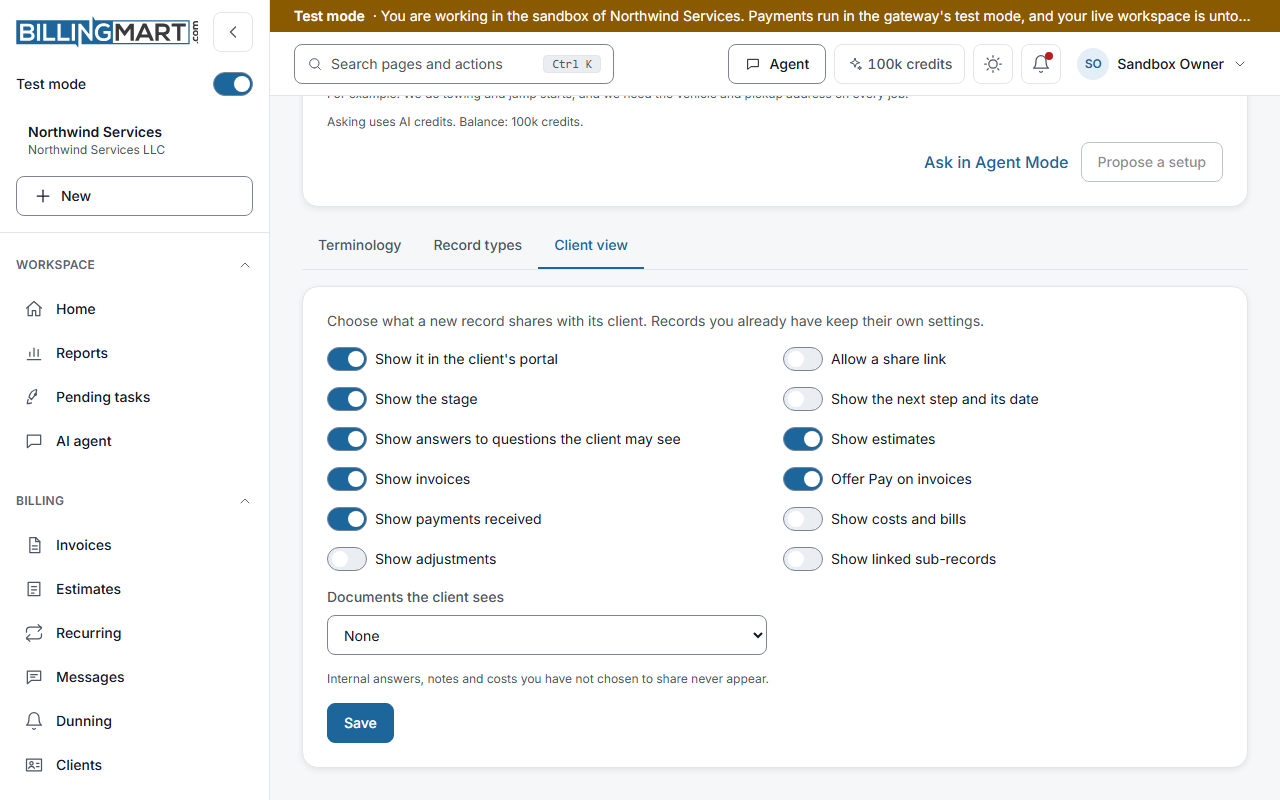
Open Settings, then Work & terminology, then the Client view tab. Choose what a new record shares with its client, then save. An owner or admin saves these settings, after a recent sign-in.
New records start with these settings. Records you already have keep their own.
| Setting | Starts | What it shows |
|---|---|---|
| Show it in the client's portal | On | The record in the client's portal |
| Allow a share link | Off | Lets the record have a share link |
| Show the stage | On | The status and the stage name |
| Show the next step and its date | Off | The text and date of the next action |
| Show answers to questions the client may see | On | Answers marked visible to the client |
| Documents the client sees | None | None, only those marked for the client, or all of them |
| Show estimates | On | Estimates linked to the record |
| Show invoices | On | Invoices linked to the record |
| Offer Pay on invoices | On | A Pay button on each invoice that can be paid |
| Show payments received | On | Payments on the record's invoices |
| Show costs and bills | Off | Linked bills |
| Show adjustments | Off | A Changes card with the record's adjustments |
| Show linked sub-records | Off | A Related work card listing the record's sub-records, each as far as its own settings show it |
Offer Pay on invoices works only while Show invoices is on.
What the client sees in the portal
A client who signs in to the customer portal finds a menu item for their work records once at least one is shared with them. It carries the word the businesses use, such as Calls or Matters, and Work when the records use more than one word.
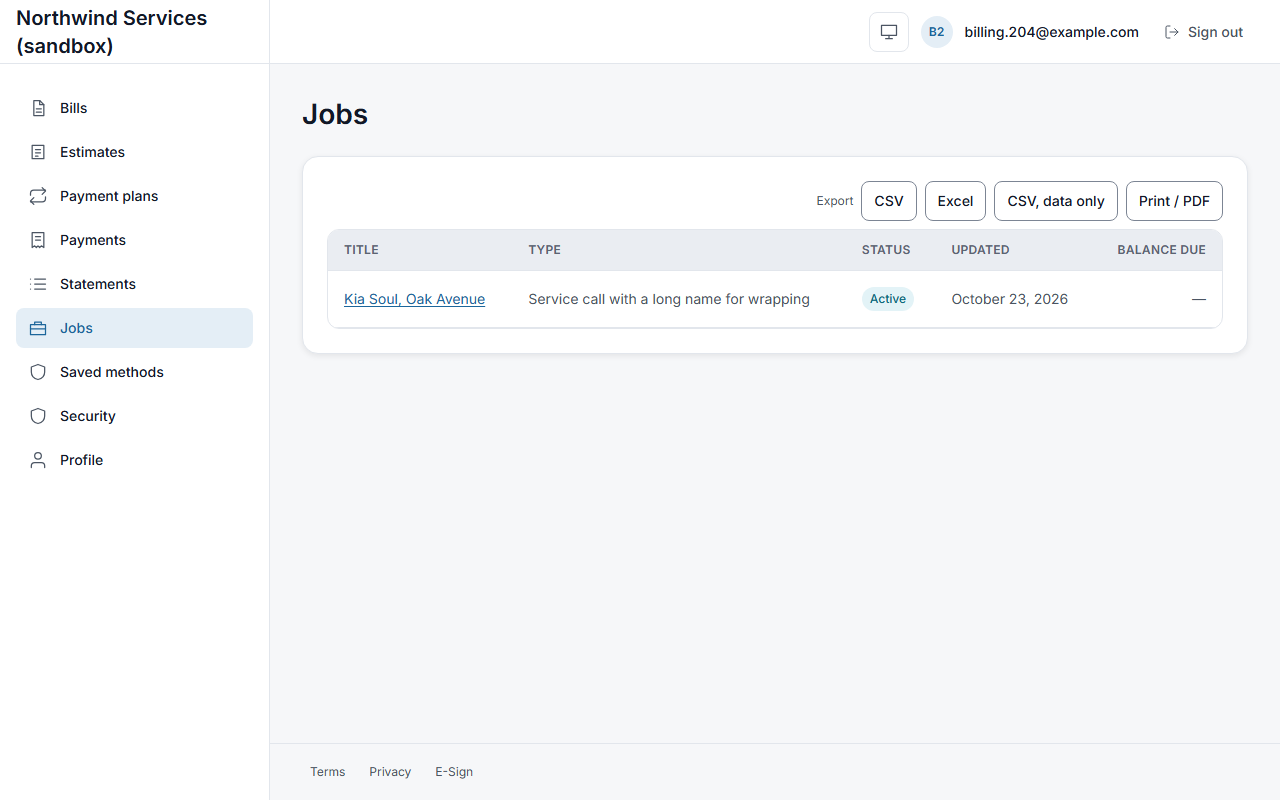
The page lists every record the client may see. Each row has a Title that opens the record, its Type, its Status, when it was Updated and the Balance due. A Business column appears when the client has records with more than one business. The export buttons save the list.
A record's page starts with the business name, the title, the number and type, and the status, with the stage beside it when the record shares it. Below that come the sections the record's settings allow, in this order:
- Next step
- Details
- Documents
- Estimates
- Invoices, each with a Pay button when the record offers one
- Payments
- Costs
- Changes
- Related work, when sub-records are shared: each one's title and, when it shows its stage, the stage
A Pay button opens that invoice's own payment page in the same tab. At the foot of the page the client sees the business's email and phone, and, on some businesses' pages, a line that the page is powered by BillingMart.
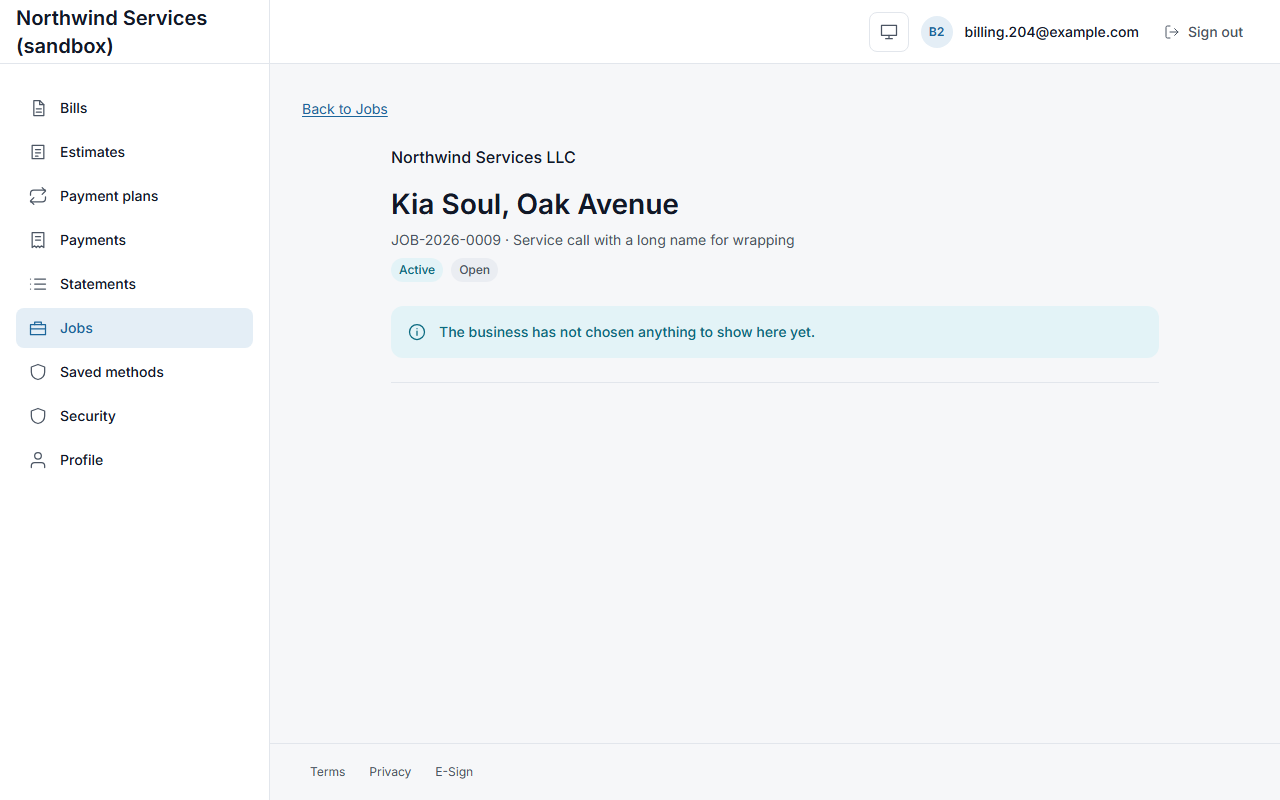
When no section is switched on for a record, the page says The business has not chosen anything to show here yet. under the record's title.
Who can see a record
A client sees a record only when it belongs to them, they reach it through a verified contact, and its client view allows it. A client of one business never sees another client's records.
What is never shown
- Answers marked internal, internal notes and the record's activity.
- Who the record is assigned to or who created it.
- Any internal id or file location.
A section whose setting is off is left out of the client's view altogether. The client never sees an empty list that hints at what exists.
Related articles
- The customer portalHow your customers sign in without a password, what they can see and do in the portal, and what it never shows them.
- Verified contacts and why a send is blockedWhat a verified email or phone means, the three ways a contact becomes verified, what an unverified contact can and cannot receive, and why a send is held back.
- How your customers payWhat a customer sees on the pay page, how a part payment works, what they pay, and what happens when a card is declined or a link stops working.
- Bill from a work recordLink invoices and bills to a work record, set its contract total, split a bill across records, and what the record's figures show.