Documents on a work record
Add several files to a record at once, see the result for each file, choose what the client can see, and meet the type's required documents.
On this page
A work record keeps its own files: photos, signed forms, letters and reports. The console calls work records Jobs. Your workspace may use its own word, such as Calls for a towing company or Policies for an insurance agency. The screens are the same.
What you can add
- PNG, JPEG, WebP or PDF files.
- Up to 25 MB per file.
- Up to 50 files and 250 MB per record.
A file of another type, or a file over 25 MB, is refused before it uploads. A cancelled or discarded record takes no new files.
Add files
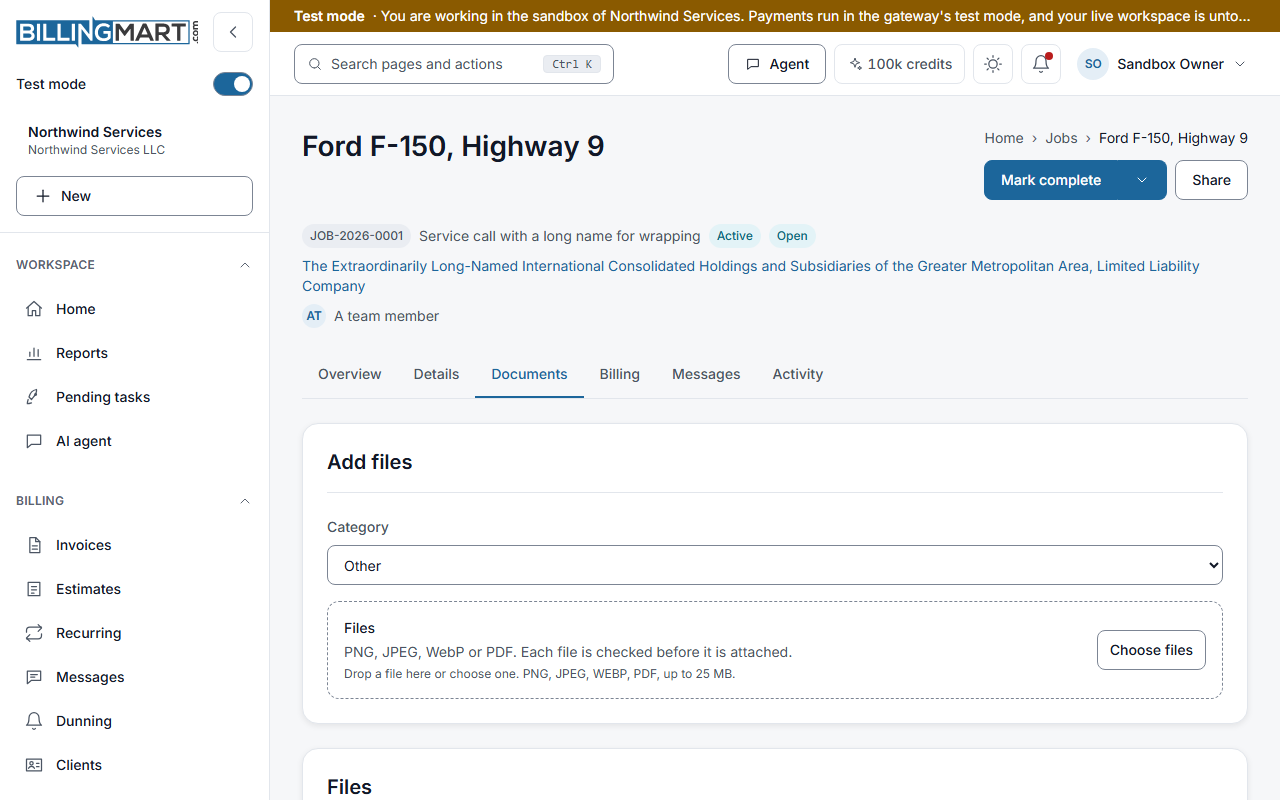
- Open the record and go to the Documents tab.
- If the record type has categories, choose a Category. It applies to the files you add next. Unless you choose one, files go under Other.
- Drop files on the Files area, or select Choose files. You can add several at once.
Each file gets its own row with its progress and its result. Up to three files upload at the same time. One file failing does not stop the others. Select Retry on a failed row to send it again.
Staff, admins and owners can add files. A viewer sees the list and can open files.
When a file is not attached
BillingMart checks every file after it arrives. It checks the first bytes, so a file renamed to look like another type is refused. A refused file shows why:
- The file was not attached: it is not the kind of file its name says. Try again.
- The file was not attached: it is larger than allowed. Try again.
- The file was not attached: it did not arrive. Try again.
- The upload did not finish in time. Add the file again. An upload has 15 minutes to finish.
Required documents
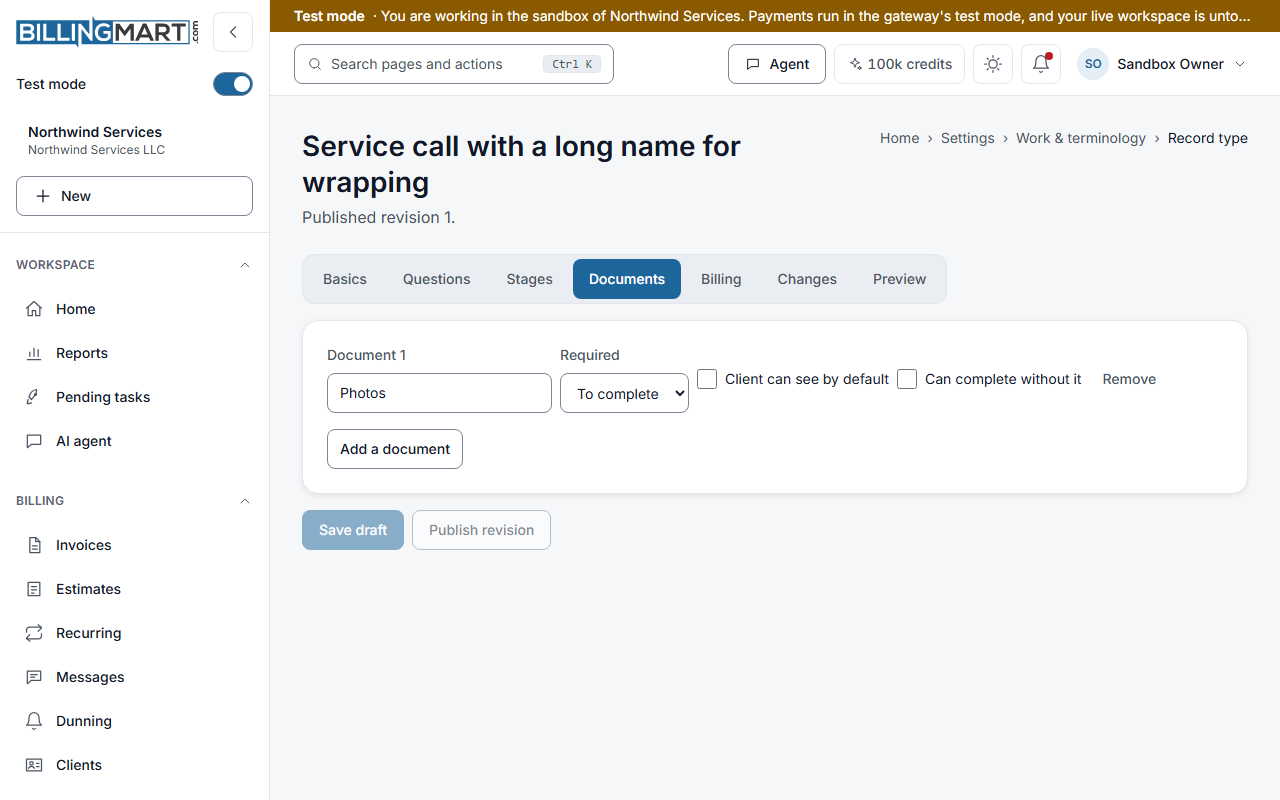
A record type can need a number of files in a category before the record is completed. The Required documents card on the Documents tab shows each one, for example 0 of 1 required attached. The Checklist card on the record's Overview shows the same counts.
The industry packs start with these categories:
- Towing: Photos, Damage report and Invoice copy. One photo is required before a call is completed.
- Law firm: Pleading, Correspondence and Closing letter. One closing letter is required before a matter is completed.
- Insurance agency: Declarations page, ID card, Endorsement and Loss runs.
If a required file is missing, completing the record is refused with Attach these documents first: and the missing categories. A type can allow finishing anyway for a category. Then Complete anyway appears, or Move anyway when you move the record to a finished stage.
Files questions
A type can ask a question answered with files, such as Signed authorization on a towing call. You answer it by ticking files already attached to the record, in the form or in the record's Details. Attach the files on the Documents tab first. A required files question is checked like any other answer: a towing call needs its signed authorization before it is completed.
What the client sees
A file is internal until you turn on Visible to client in its row. A category can make new files in it visible by default. A file flagged as sensitive shows Flagged: never shown to the client and cannot be made visible.
Open and remove
Select Open to view a file in a new tab. The link works for ten minutes.
To remove a file, select Remove and confirm. It is hidden from the record and from the client at once.
Related articles
- Create a work recordChoose a record type, fill in the title, client and details, and create the record as a draft or create and activate it in one step.
- Stages and the boardMove work records through their stages on the record or the board, complete, reopen or cancel them, and set the next action and assignee.
- Share a work record with a clientChoose what a new work record shares with its client, what the client's page shows, and how a record's share link expires and stops working.