Jobs: sub-jobs
Put a work record under another, see the tree on the client's page, move a branch, and know what happens when a parent is cancelled or discarded.
On this page
Your workspace may use a different word for its work; the screens are the same.
A sub-job is a work record under another work record. A renovation project can hold one record per phase. A commercial policy can hold one per location. A matter can hold its motions, and a fleet account its single tows. Each sub-job is a full record, with its own type, answers, stage, documents, invoices and bills.
Add a sub-job
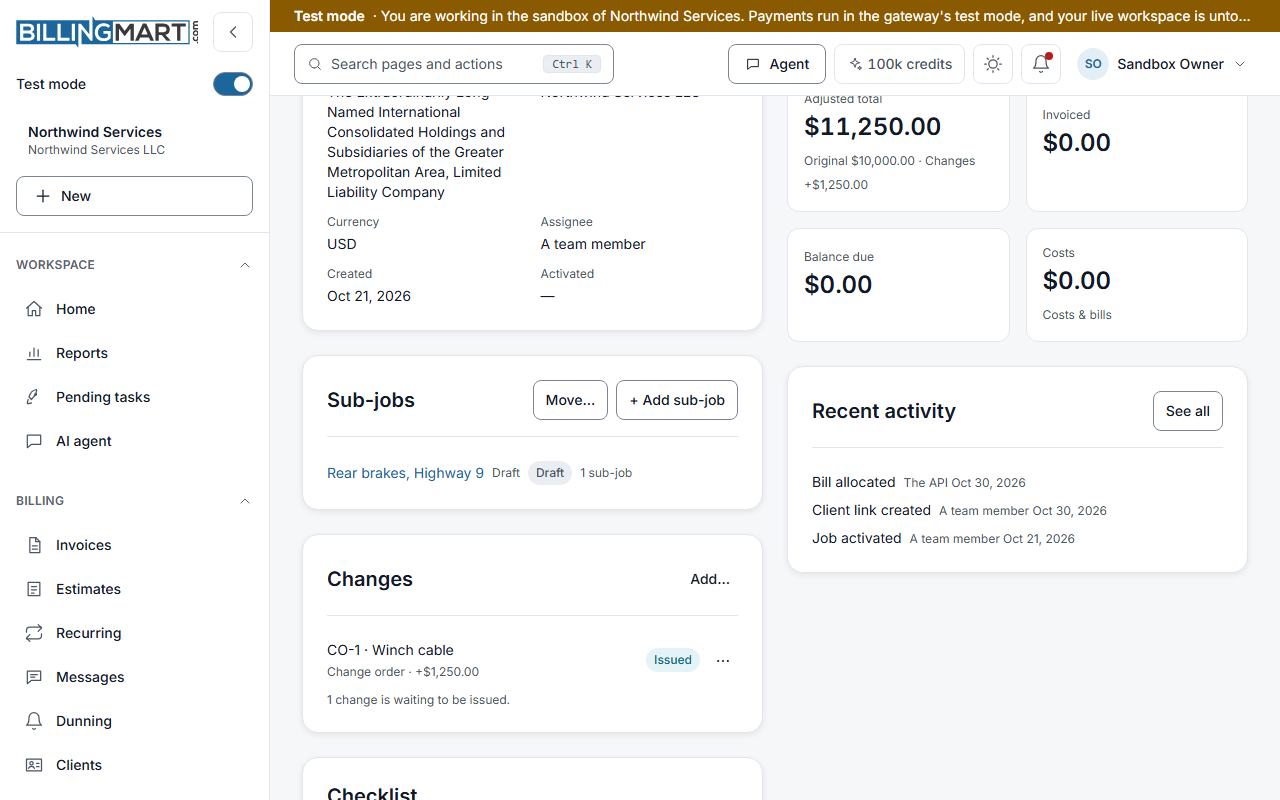
- Open the parent record. On its Overview, find the Sub-jobs card and select + Add sub-job.
- Choose the Type. Any active, published type of the business can be used.
- Optionally, give it a Title.
- Under Copy from the parent, tick any answers the new sub-job should start with. The list appears only when there is something to offer: an answer is offered when the chosen type asks the same question with the same kind of answer. A sensitive answer is offered to an owner or admin only. An answer is copied once, when the sub-job is made, and is not kept in step afterwards.
- Select Add sub-job. The new sub-job opens as a draft.
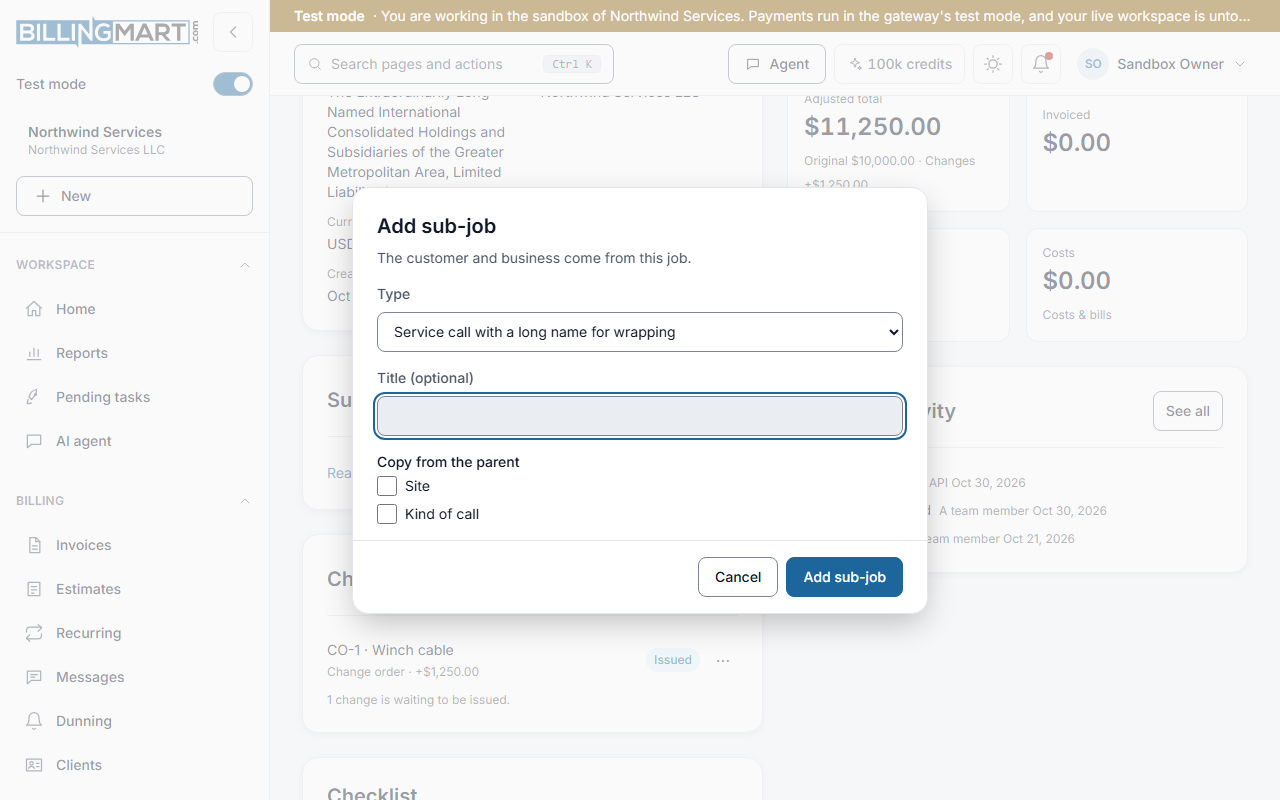
The customer and the business come from the parent and must match it. Once either record is active, the currency must match too. A cancelled record takes no sub-jobs.
How big a tree can grow
- Sub-jobs can go three levels below the top record.
- One record can have up to 50 sub-jobs.
- One top record can have up to 200 records under it.
Where the tree shows
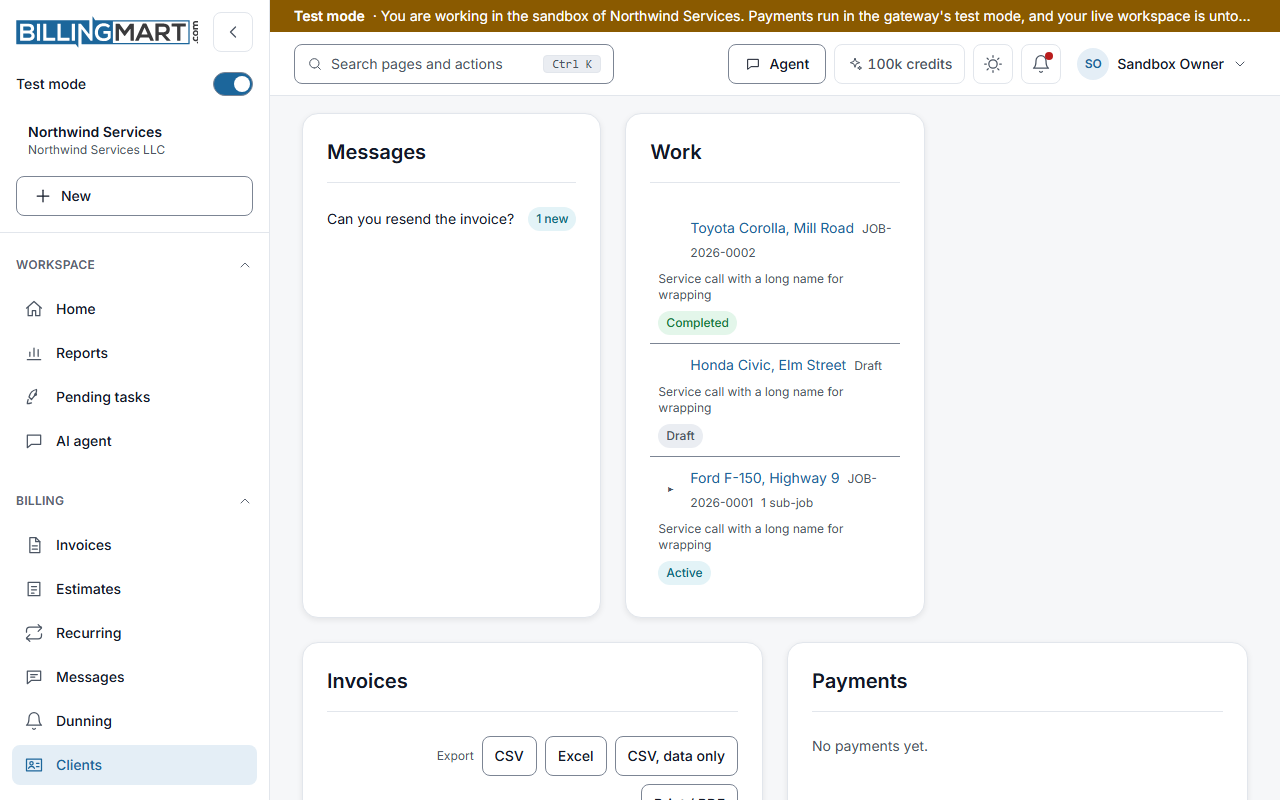
- The client's page. Open Clients, then the client. The Work card lists the client's records as a tree. Each parent opens to show its sub-jobs. The arrow keys move between rows and open or close a parent.
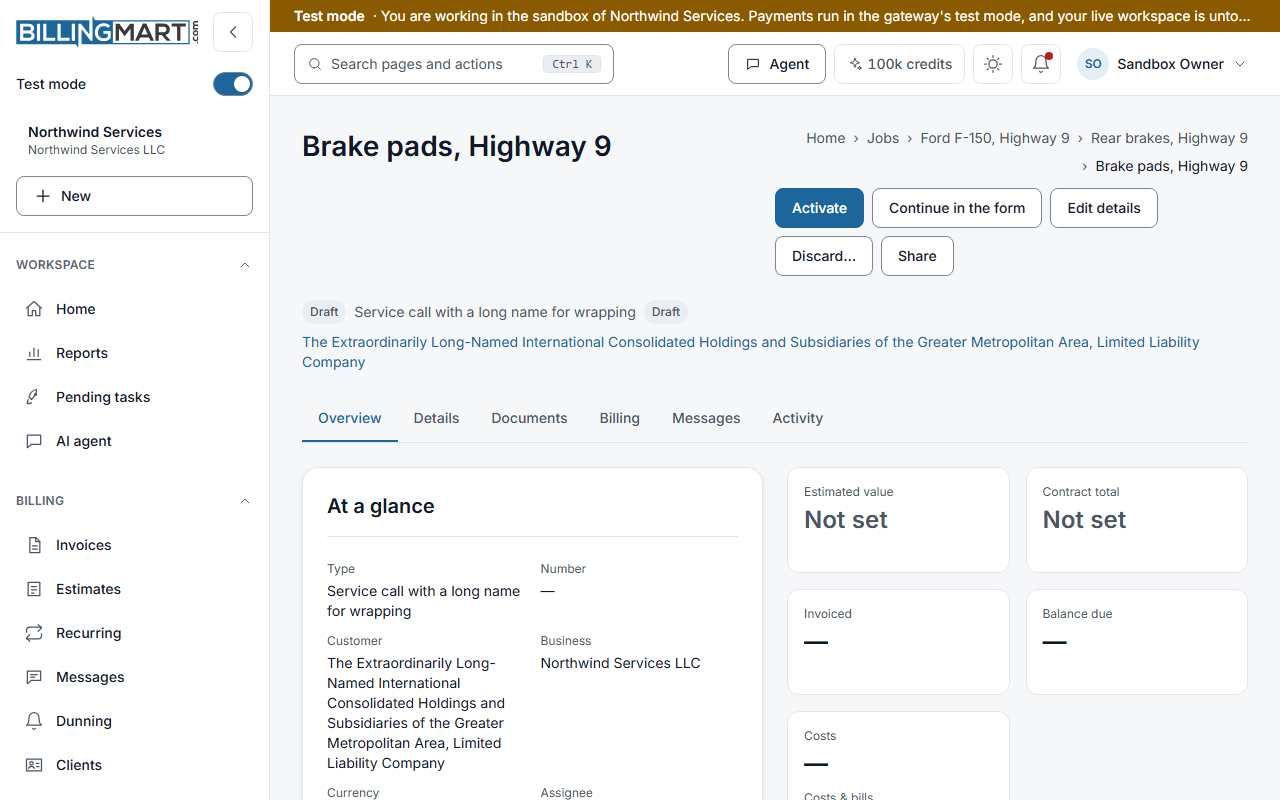
- The record. The breadcrumb at the top of the page lists the parent records, from Home and Jobs down to the record itself. The Sub-jobs card lists the record's own sub-jobs with their number, or Draft, and their status.
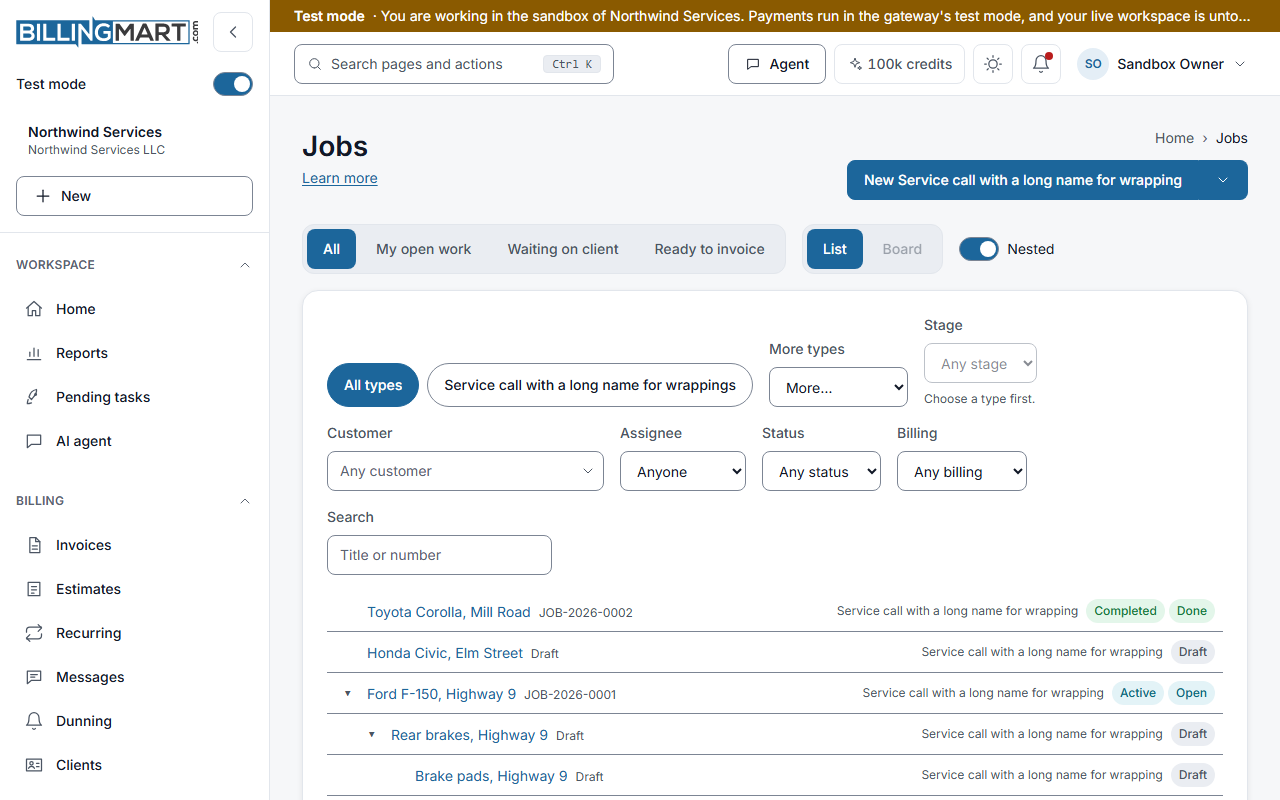
- The Jobs list. In the list layout, turn on Nested beside the saved views. Sub-jobs then sit under their parents, and a parent opens to show them. A parent that is not in your results but sits above one that is stays in the list, dimmed, so the match keeps its place. The board has no Nested switch. In the flat list and on the board, a sub-job says "Sub-job of" and its parent's title.
- Invoices, estimates and bills. On the overview tab of an invoice, estimate or bill that belongs to a sub-job, the parent records show as a trail of links above it.
- A client's shared page and portal. When Show linked sub-records is on for the record, its page lists the sub-jobs in a Related work card, each one only as far as its own client view shows it. Changes to a related record can take a minute to appear on a shared page.
Numbers
A sub-job takes its number from its parent when it is activated. Under JOB-2026-0012, the first sub-job is JOB-2026-0012.1, and a sub-job under that one can be JOB-2026-0012.1.3. A sub-job cannot be activated before its parent. Activating a sub-job counts as one send, like any record. It is never refused at your monthly limit.
Move a branch
- On the Sub-jobs card, select Move….
- Under Under, pick another record of the same customer, or Top level.
- Select Move.
The record moves with everything under it. Every number already given is kept. A record cannot move under itself or under one of its own sub-jobs.
Money stays with each record
Each record is invoiced on its own, and a sub-job never changes its parent's invoices.
On a record that has sub-jobs, the money tiles on its Overview have two buttons. This job is the default and shows the record's own figures. Including sub-jobs shows the record and everything under it: Total value, Invoiced, Received, Customer balance, Linked costs and Bills outstanding. When the records use more than one currency, each currency has its own heading and its own tiles.
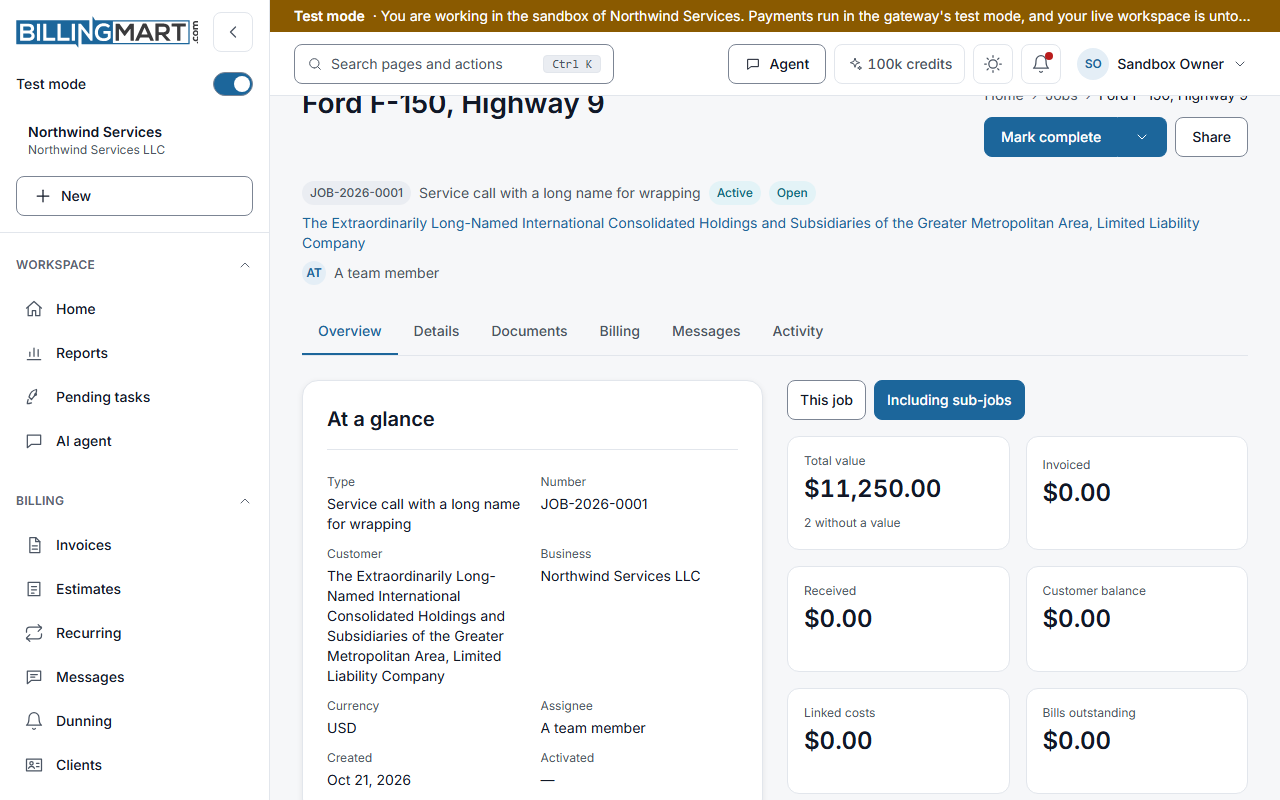
Below the tiles, a line may say how many records have no value set. Another may say that the figures cover only the first 200 sub-jobs, or that a sub-job is left out because its documents mix currencies.
Cancel, discard and delete
- Cancel. When a parent has sub-jobs that are not cancelled, tick This job has sub-jobs. Cancel them too? Then the whole branch is cancelled at once, or nothing is. Without the tick, the cancel is refused.
- Discard. A draft with sub-jobs cannot be discarded. Move or discard its sub-jobs first.
- Delete. A record with sub-jobs is deleted only with them. Tick This job has sub-jobs. Delete them too?, or move them first.
Related articles
- Jobs: record typesWhat a record type holds, and how owners and admins create, duplicate, publish, order, archive and restore types without breaking older records.
- Jobs: who can do whatWhat owners, admins, staff and viewers can do with work records, record types and work settings, how a limit to one business applies, and the API scopes.
- Jobs: change orders, endorsements and other changesThe kinds of change a record type offers, how a change is drafted and issued with its own number, and how issuing counts a send.
- Add and manage clientsAdd a client on the web or your phone, what a client record holds, how the duplicate warning works, and how to edit, archive, restore and merge.
- What counts as a sendWhich actions use up your monthly sends, which never do, and what still works when you reach your limit.