Drafts of work records
A new record saves itself as a draft while you type. Resume it later, handle an edit conflict, change its type, or discard it.
On this page
A draft is a work record that has not been activated yet. The console calls work records Jobs. Your workspace may use its own word, such as Calls for a towing company or Matters for a law firm. The screens are the same.
A draft has no number and does not count as a send. It counts only when you activate it.
Autosave
The draft is saved as soon as you enter something: a title, a client, an estimated value or an answer. After that, your changes save a moment after you stop typing. They also save when you move to another step, when you leave the form and when you switch to another browser tab.
The line at the bottom of the form shows where it stands:
- Saving… while a save is in progress.
- Draft saved with the time, once it is saved.
- Could not save. Your changes are kept here; retrying… when a save fails. BillingMart tries again by itself.
After three failed saves in a row, a banner says Could not save. Your changes are kept here. Select Retry to try again.
You are warned before you leave the form only when a change has not been saved yet.
Resume a draft
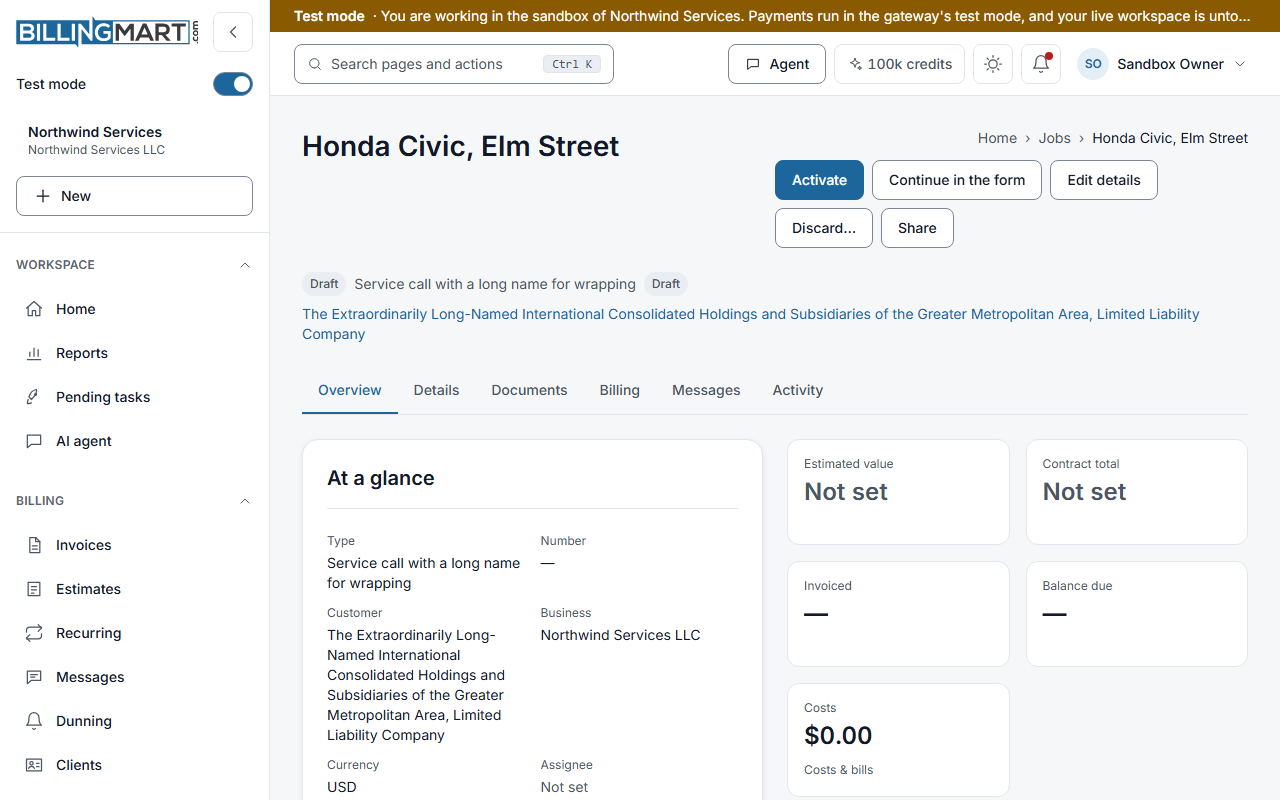
A draft shows in the Jobs list with Draft where the number would be. To go back to it, open the row's menu and select Continue in the form. On the record itself, the same choice is in the header.
While you are in the form, the page address names the draft. Reloading the page resumes the same draft. The form opens on the step you were on.
When someone else changed it
If another person saved the same draft while you were editing, a banner says This call was changed after you opened it (with your own word for a record). Choose Reload to see their version and drop your edits, or Keep mine to save yours over theirs.
Change the type
- Once the draft is saved, select Change type… above the form. It appears only when there is another type to move to.
- Choose the New type.
- Read the preview. Kept lists the answers that the new type also asks for. Dropped lists the rest, with their values.
- Select Change type to confirm, or Cancel.
Dropped answers are removed from the draft and cannot be recovered. The form then opens again on the new type.
Discard a draft
You can discard a draft that was never activated. Open the draft and select Discard… in its header, then confirm with Discard. A discarded draft leaves your lists and is never counted as a send.
A draft that has sub-records cannot be discarded until they are dealt with. An active record has no Discard. An owner or admin can cancel it or delete it instead.
Related articles
- Create a work recordChoose a record type, fill in the title, client and details, and create the record as a draft or create and activate it in one step.
- Edit or delete a work recordChange a work record's name, client, values and answers, and delete a record made by mistake with its unpaid invoices, open bills and draft estimates.
- What counts as a sendWhich actions use up your monthly sends, which never do, and what still works when you reach your limit.