Bill from a work record
Link invoices and bills to a work record, set its contract total, split a bill across records, and what the record's figures show.
On this page
A work record collects what you bill for one piece of work. It also collects the bills you owe for it. The console calls work records Jobs. Your workspace may use a different word for its work; the screens are the same. A law firm calls them Matters; an insurance agency, Policies.
Every invoice made from a record is a normal draft. You review it and send it as usual.
The Billing tab
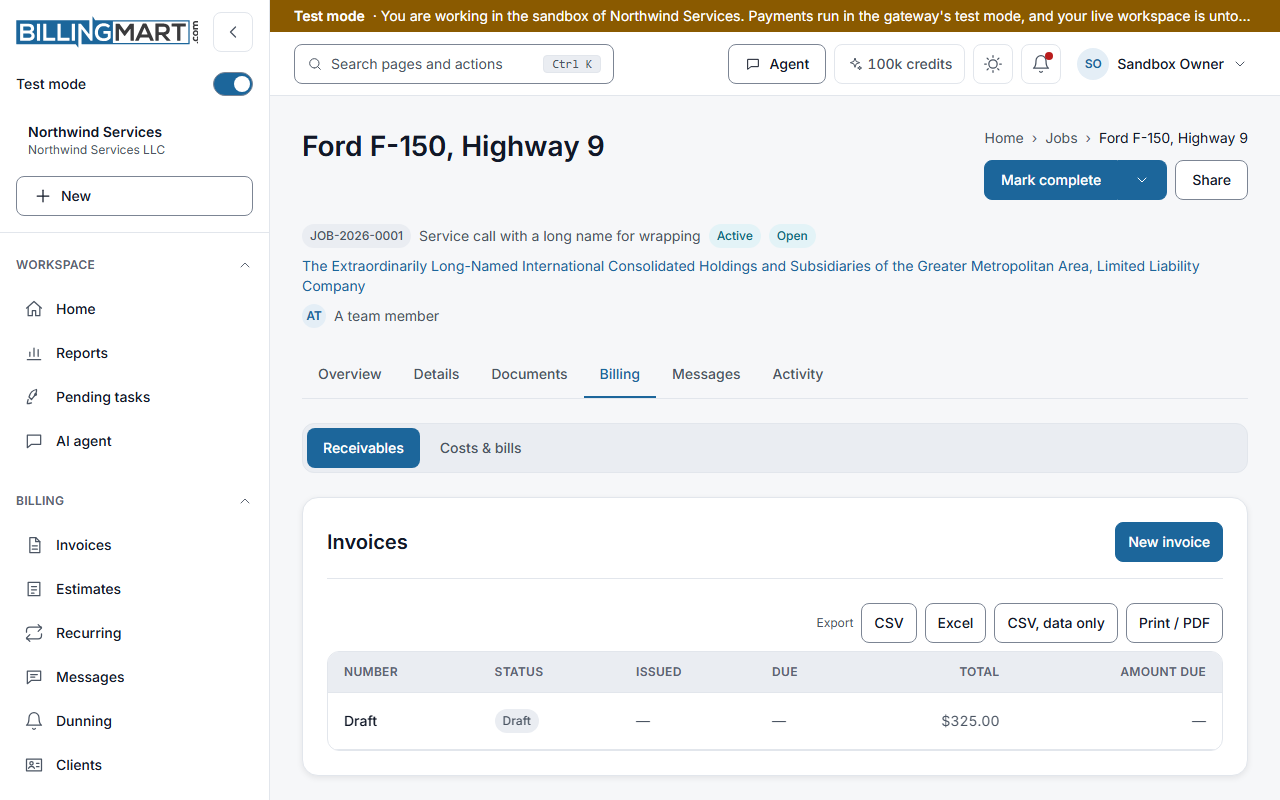
Open a record and select the Billing tab. It has two parts: Receivables, the invoices you send for the record, and your payables, the bills you owe for it. The payables part takes your industry's label, such as Vendor bills.
Receivables lists the record's invoices with their number, status, issue date, due date, total and amount due. A draft shows as Draft. A void invoice stays in the list but is never counted.
Make a draft from a record
- Open the record's Billing tab.
- In Invoices, select New invoice.
The draft opens. It takes the record's client, business and currency, and it is linked to the record. It starts with no lines. Add them, review the draft and send it from Invoices as usual. Nothing is sent from the record.
- New invoice shows only on an active record, and only to someone who can edit the record. A draft record says Activate this call to invoice it, with your own word for a record.
- A record with no client cannot make an invoice. Add the client to the record first.
- A cancelled record cannot make an invoice.
A type billed in stages also offers Deposit draft, Progress draft and Release retainage here. See Jobs: deposits, progress billing and retainage.
A connected assistant or the API can also make a draft from a record. The draft can then take the record's unbilled time, expenses and trips as its lines. Each entry is marked billed with the draft, so it is not billed twice.
An invoice linked to a record shows "Part of job" and the record's title, with a link to the record.
Find records ready to invoice
On the Jobs list, the Ready to invoice view shows active and completed records that have no invoice yet.
In the All view, the Billing filter narrows the list to Not invoiced, Invoiced, Partly paid, Paid or Overdue. It works with the status filter only. Clear the type, assignee or client filter to use it. It is not offered while you search.
When a linked invoice can be sent
The record must be active or completed. A draft record refuses the send until you activate it. A cancelled record refuses the send.
Which answers reach the invoice
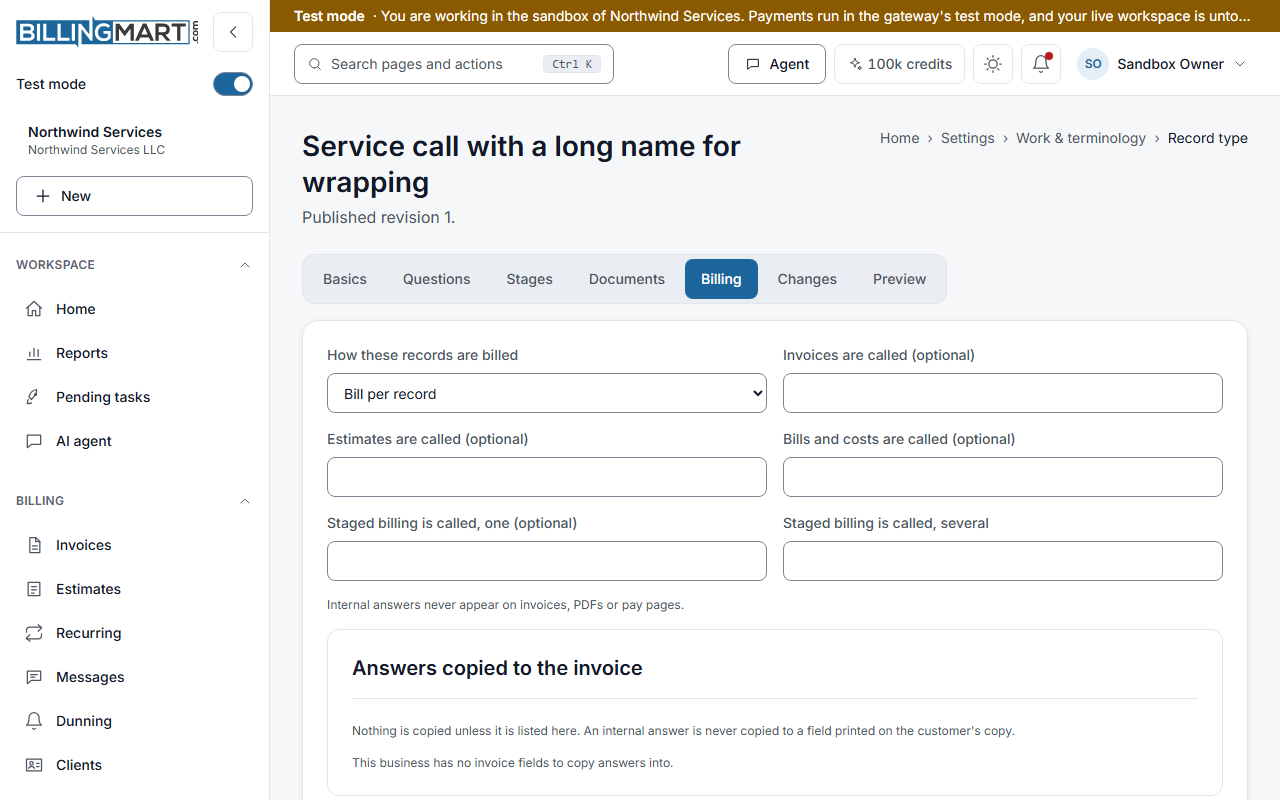
Nothing is copied from a record to an invoice unless the record type says so. Each type lists its mappings: this answer fills that invoice field. A type holds at most 30 mappings.
- Internal answers never reach the customer. An answer marked internal is never copied to a field your customer sees. BillingMart refuses the draft instead.
- What you type wins. A field you filled yourself keeps your value. The mappings fill the rest.
- A refresh copies them again. Refreshing a draft from its record writes the mapped fields again. Only a draft can be refreshed.
Example: in the insurance agency pack, the effective date is visible to the client. The policy number and the gross premium are internal, so they stay off the invoice.
Time and expenses that belong to a record
When you bill a client's unbilled work from Bill unbilled, entries that belong to a record are left out. The screen says how many, so you bill them from the record instead. See Bill time and expenses.
Estimated value and contract total
On the record's Details tab, choose Edit on the Basics card to set two figures:
- Estimated value. A budget for your own reference. It shows as "Not set" when empty. Billing never uses it.
- Contract total. The agreed price. Deposit and progress invoices are worked out from it.
The contract total can be changed but not cleared. It is locked once a deposit or progress invoice has been raised against it, until that invoice is void.
Deposits, progress invoices and retainage work as described in Jobs: deposits, progress billing and retainage. Each type can name these steps in its own words. A law firm's types call a deposit an Advance and a progress invoice a Phase invoice. Not every record needs staged billing. A towing call or a consultation is usually one invoice.
Split a bill across records
You allocate a bill on the bill's own page, in the Allocate to card. A bill can belong to one record or be split across several. The records offered are the active and completed ones in the bill's business.
- Pick a record and enter the amount that belongs to it.
- Add a row for each other record that shares the bill.
The amounts can add up to less than the bill. The rest shows as Unallocated. They can never add up to more.
Anyone who can edit the bill can change the split while the bill is a draft. Once the bill is open, only an owner or admin can move it, with Reallocate…. They give a reason and confirm a recent sign-in. Reallocating changes only which record carries the amount. The bill's total, status and payments stay the same.
A payment on a split bill is shared across its records in proportion to each share. A draft bill counts toward no figure. A void bill counts toward no record. Recording a bill payment moves no money. See Vendor bills.
The record's figures
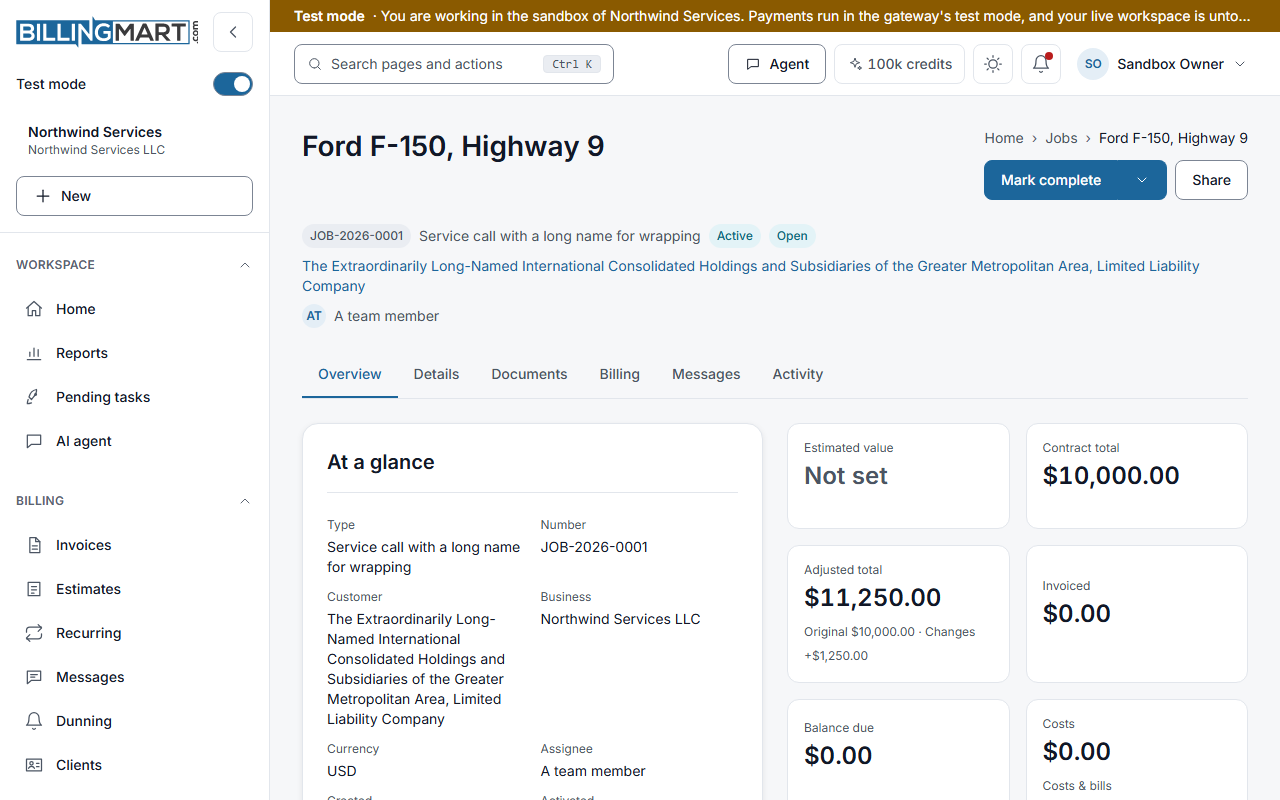
The record's Overview shows the estimated value, the contract total, Invoiced, Balance due and Costs. Costs are the bills allocated to the record plus its expenses.
A figure with nothing behind it shows a dash, not zero. So does a figure that could not be read. The estimated value and the contract total show "Not set" when empty. A connected assistant or the API can read the same figures.
Receivables and payables are never netted. A record holds no ledger of its own.
The payables label is only a label
Each industry names payables in its own words:
| Pack | Payables label |
|---|---|
| Contractor | Vendor bills |
| Insurance agency | Premium dues |
| Insurance MGA | Carrier remittances |
| Insurance carrier | Commissions payable |
| Most others | Costs & bills |
Renaming the label changes no amount, status, category or ledger entry. It only changes the heading you see.
Related articles
- Jobs: deposits, progress billing and retainageBill one job in stages with a deposit, progress invoices that withhold retainage, and a single release at the end, and see what the job refuses.
- Record vendor billsKeep a list of vendors, enter the bills you owe them, open each one to track what is due, and record payments you made elsewhere.
- Create an invoiceStart a draft, add your customer and line items, and see how BillingMart works out the totals before you send.
- Send an invoiceWhat Save and send does, who gets the email, what happens when the customer's email is not confirmed, and what counts as a send.
- Bill time, mileage and expensesTurn unbilled time, mileage and expenses into lines on a draft invoice, bill each record once, and change a rate before you send.
- Custom fields on invoices and estimatesAdd your own details, such as a job address or a policy number, to invoices and estimates, and learn which ones print and which block a send.
- Create a work recordChoose a record type, fill in the title, client and details, and create the record as a draft or create and activate it in one step.