Edit or delete a work record
Change a work record's name, client, values and answers, and delete a record made by mistake with its unpaid invoices, open bills and draft estimates.
On this page
You can change a work record after you create it, and delete one you made by mistake. The console calls work records Jobs. Your workspace may use its own word, such as Calls for a towing company or Policies for an insurance agency. The screens are the same.
Edit the basics
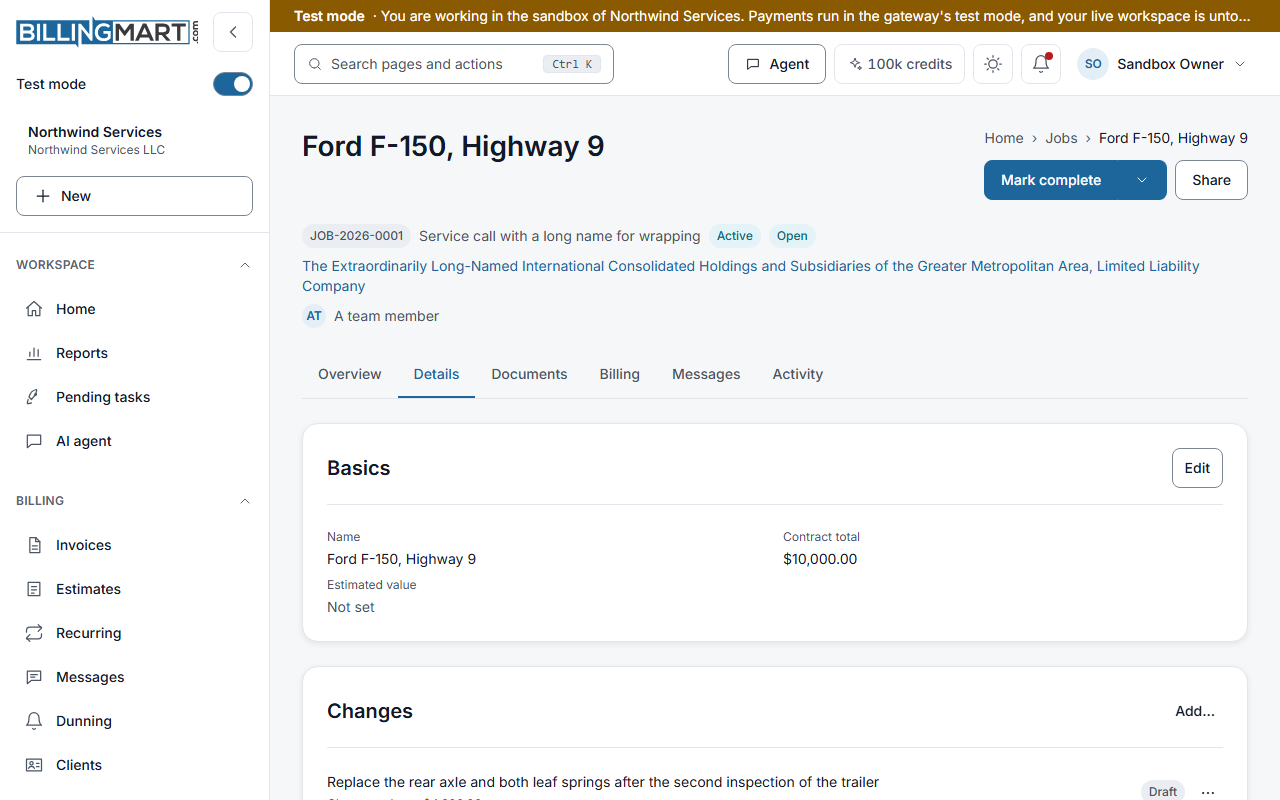
- Open the record and go to the Details tab.
- On the Basics card, select Edit.
- Change what you need, then select Save.
| Field | What to know |
|---|---|
| Name | The record's title. It cannot be empty. |
| Customer | The record's client. It cannot change while an invoice names the record. Void or discard the invoice first. |
| Estimated value | A budget for your own reference. Leave it blank for none. |
| Contract total | The agreed price. You can change it but not clear it. It is locked once a deposit or progress invoice has been raised against it. |
The amounts are in the record's currency.
Edit the answers
Each section of the record's questions has its own card on the Details tab. Select Edit on the card, change the answers and select Save. Clear an answer to remove it. Each answer shows Internal or Visible to client.
The card edits text, numbers, dates, choices, email addresses and phone numbers. For other kinds of answer it says to edit them on the intake page. On a draft, select Continue in the form to do that. Address, file and team-member answers show Chosen on the record. in the form and cannot be changed there.
Only an owner or admin can change an answer the type marks as sensitive.
Other changes
- Assignee and next action. Use Assign… and Set next action… in the record's menu.
- Stage. Use Move to stage…, Mark complete or Reopen.
- Type. Only a draft can change its type, with Change type… in the form.
A cancelled record cannot be changed. If someone else saved the record while you were editing, choose Reload to see their version or Keep mine to save yours over it.
Delete a record made by mistake
Delete is for a record that should not exist. The record is hidden from your lists and kept for the record. To stop work and keep it as history, cancel it instead. To remove a draft that was never activated, discard it.
Only an owner or admin can delete. Delete is offered on active and completed records. A cancelled record is kept as history and cannot be deleted.
- Open the record and select Delete…. On an active record it is in the menu beside Mark complete. On a completed record it is beside Reopen.
- Read what is tied to the record. Each group has its own box, ticked at the start:
- Void its unpaid invoices. Draft invoices are discarded, not voided.
- Void its open bills. Draft bills are discarded.
- Discard its draft estimates.
- Fill in Why is it being deleted? A reason is required, up to 500 characters.
- If the record has sub-records, tick This job has sub-jobs. Delete them too? to delete them with it.
- Select Delete with your word for a record, for example Delete call. You may be asked to sign in again and to use your second sign-in step.
A voided invoice cannot be paid any more, and its payment link stops working.
What stays
Some documents are never changed by a delete. They are listed under These stay, linked to the archived job, and are not changed, each with the reason:
- An invoice with a payment against it. Issue a credit note instead.
- An invoice that was written off.
- A bill with a payment against it. Void the payment first.
- A bill that is also charged to other records.
- An estimate that was sent.
A box you untick also leaves those documents as they are.
If something changes while you delete
BillingMart checks that nothing was added to the record since you opened the dialog. If something was, the record is not deleted and the dialog says Part of this was already done. Review what's left. Any other failure also leaves the record in place. Either way, the dialog reads again what is still tied to the record. Review it and delete again.
Related articles
- Create a work recordChoose a record type, fill in the title, client and details, and create the record as a draft or create and activate it in one step.
- Drafts of work recordsA new record saves itself as a draft while you type. Resume it later, handle an edit conflict, change its type, or discard it.
- Stages and the boardMove work records through their stages on the record or the board, complete, reopen or cancel them, and set the next action and assignee.
- Bill from a work recordLink invoices and bills to a work record, set its contract total, split a bill across records, and what the record's figures show.