Email or text a client from a work record
How the Messages tab of a work record lists every email and text about it, what a message can carry, and how a text conversation is linked to the record.
On this page
You can email or text a work record's client about the record. Every message is kept on the record, on its Messages tab. The console calls work records Jobs. Your workspace may use its own word, such as Matters for a law firm or Policies for an insurance agency. A contractor might text a homeowner that the crew arrives at 8. A law firm might email a client the hearing date.
What a message can be
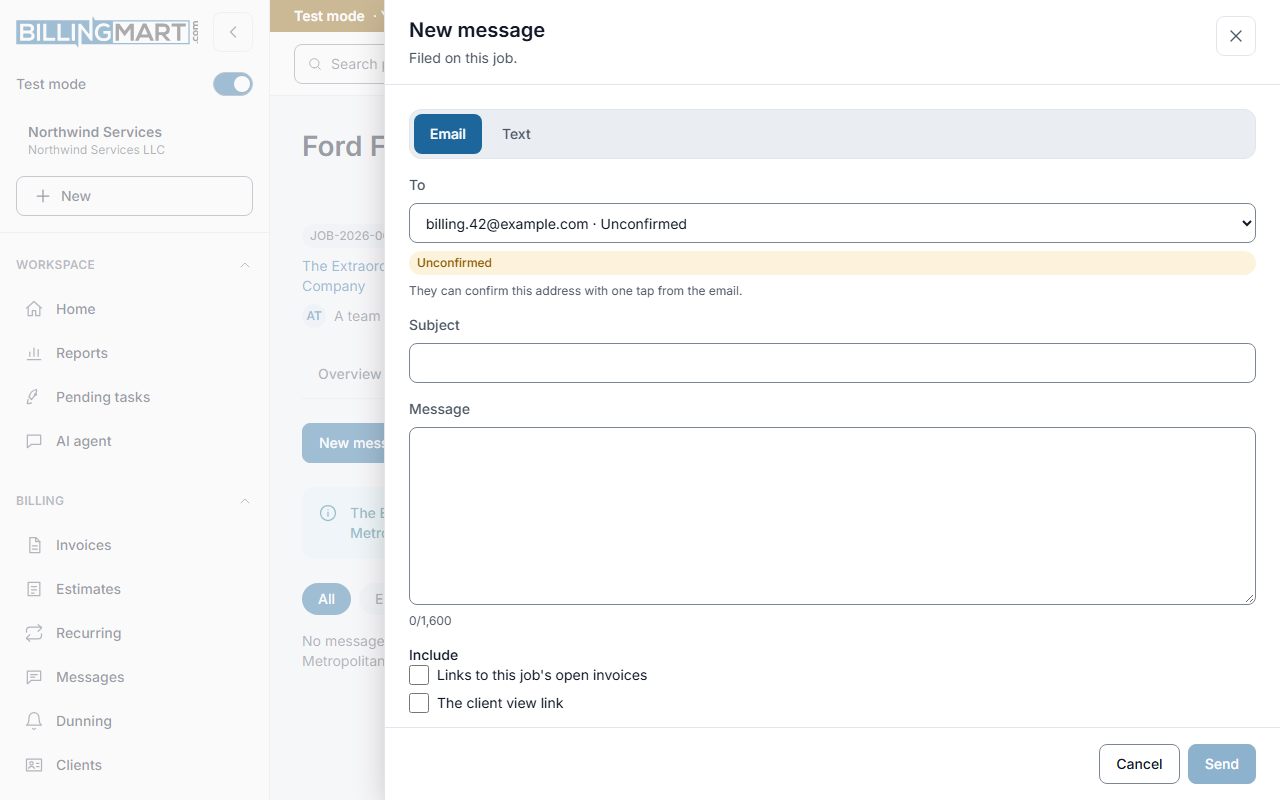
- To. One of the record's client's contacts: an email address for an email, a phone number for a text. A record with no client cannot send a message.
- Email. A subject of up to 200 characters and a plain-text body. With any links added, the body takes up to 1,600 characters.
- Text. Up to 320 characters, links included.
- Links. A message can carry links to the record's sent invoices that have a live pay link. It can also carry the record's client view link, but only while the record has a live one. BillingMart adds these links itself. A message whose links would not fit is refused, not cut.
Confirmed and unconfirmed contacts
An email from a record can go to an address the client has not confirmed yet, as long as mail to it has not bounced. When the record has a live client view link, that email carries a personal link to it. The page first names your business and the record, with one View button and a note that opening it lets your business know the email reached them. Pressing View confirms the address and opens the record's client view. Opening the email or the page alone confirms nothing. The link opens only this record's client view. Without a live client view link, the email carries no personal link.
A text follows the usual rules for texts, including the client's consent to receive them.
The Messages tab
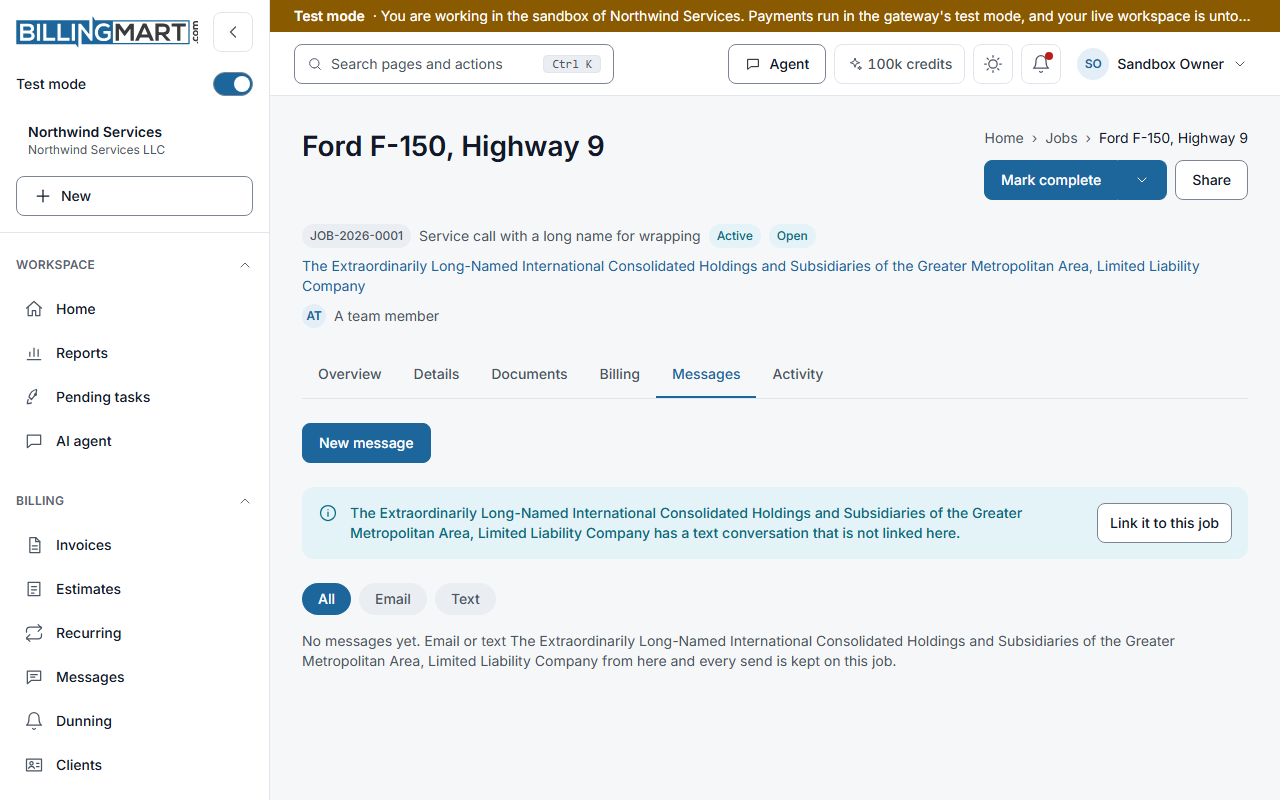
The tab lists every email and text sent from the record, newest first. It also lists the texts of a conversation linked to the record, so a client's replies by text show here as "From" and the client's name. Each message shows its subject, or the first line of a text. Select Show more to read the rest.
Each message you send shows its status:
- Queued
- Sent
- Sent, unconfirmed address
- Delivered
- Failed
- Blocked
Filter the list with All, Email or Text. A record with no messages yet says so. If the list does not load, select Try again.
The record's Activity tab also lists each message under its Messages filter, such as "Message sent" or "Message received".
Link a text conversation
When the record's client has a text conversation that is not linked to any record, the tab offers it. Select Link it to this job, using your workspace's word for a record. You see "Conversation linked." The conversation's texts are then filed under this record.
- A conversation is linked to one record at a time. Linking it to another record moves it.
- A conversation with another client cannot be linked.
- Linking does not give consent to texts and does not confirm the phone number.
Who can send
Staff, admins and owners can send messages and link conversations. Viewers can read the tab. A connected agent can only ask to send a message. Nothing is sent until a person approves the request. See Verified contacts and why a send is blocked for why a message can be blocked.
Related articles
- Share a work record with a clientChoose what a new work record shares with its client, what the client's page shows, and how a record's share link expires and stops working.
- Verified contacts and why a send is blockedWhat a verified email or phone means, the three ways a contact becomes verified, what an unverified contact can and cannot receive, and why a send is held back.
- Create a work recordChoose a record type, fill in the title, client and details, and create the record as a draft or create and activate it in one step.