Jobs: record types
What a record type holds, and how owners and admins create, duplicate, publish, order, archive and restore types without breaking older records.
On this page
Your workspace may use a different word for its work; the screens are the same.
A record type is one kind of work your business does. Each type has its own questions, stages, documents and billing. A towing workspace has types such as Towing Service, Jump Start and Lockout. A law firm has Consultation, Estate Planning, Business Formation and Litigation.
What a type holds
The type editor has seven tabs:
- Basics. The name and its plural, an optional word for one record, an optional create button label, an icon, when A client is needed, a description, up to ten other names people search for, and which businesses use the type.
- Questions. What a record asks for. See the questions article in this section.
- Stages. The steps a record moves through, from 2 to 12. Each stage has a name, a kind, a colour and whether moving into it needs a note. Every type needs an Open, a Done and a Cancelled kind of stage.
- Documents. Up to 12 kinds of document a record collects. For each, whether it is required to complete or to bill, and whether the client can see it by default.
- Billing. How these records are billed: Bill per record, Progress billing, Agency bill or Direct bill. You can rename invoices, estimates, bills and costs, and staged billing for this type. You can also send an answer to an invoice detail.
- Changes. The kinds of change a record can carry after it starts, such as a change order or an endorsement. Each kind has its own number prefix.
- Preview. The questions as a form you can try. It says whether a record would open as one page or as steps. Answers typed here are not saved.
Industry examples, as each business type sets them up:
| Business type | Record types |
|---|---|
| Towing & Roadside | Towing Service, Jump Start, Lockout, Tire Change, Fuel Delivery |
| Legal | Consultation, Estate Planning, Business Formation, Litigation |
| Contractor | Repair, Installation, Renovation, Maintenance |
| Insurance Agency | Policy, Service |
| Insurance MGA | Submission, Policy, Bond |
| Insurance Carrier | Policy, Claim notice, Bond / Surety |
Create, duplicate or add from a template
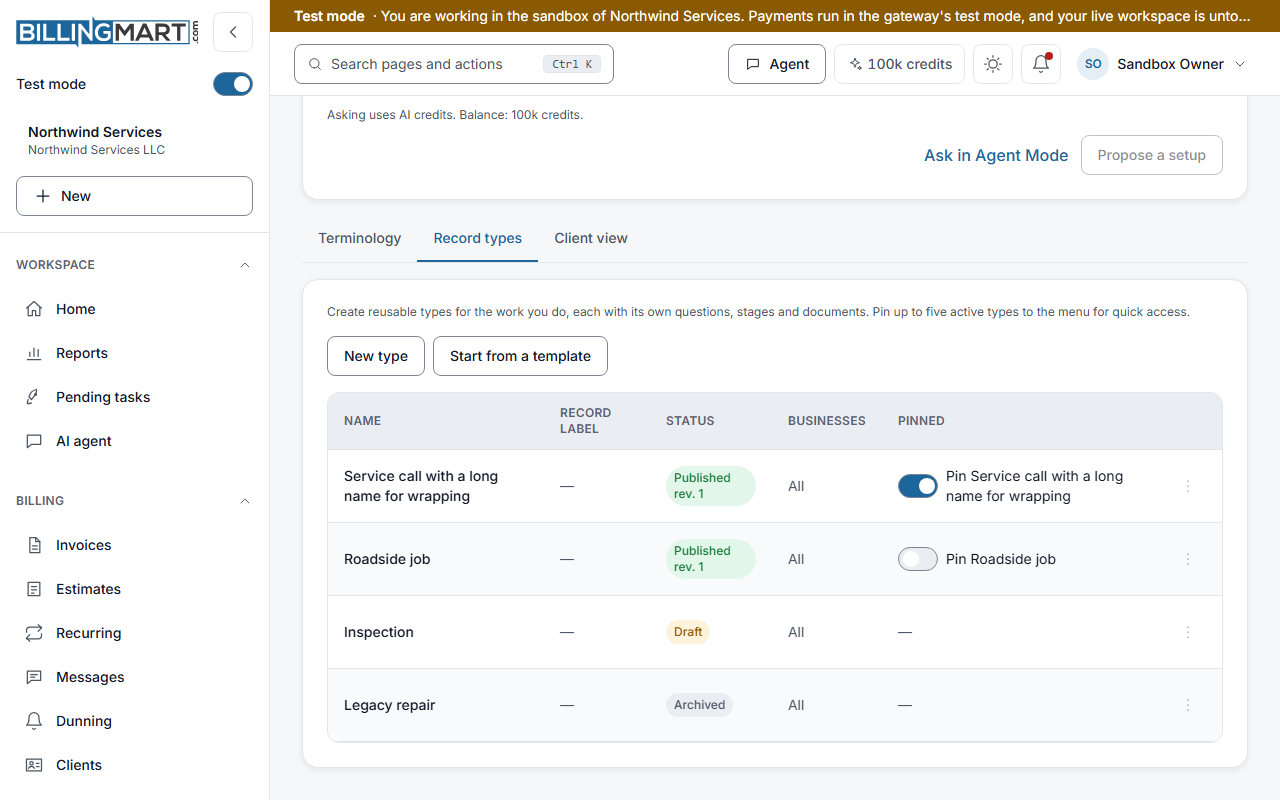
- Open Settings, then Work & terminology, then Record types.
- Choose how to start:
- New type starts with three stages: Open, Done and Cancelled.
- Duplicate, in a type's menu, makes a copy named Copy of the original.
- Start from a template lists the ready-made types of your business type, and the general ones, that you do not have yet. Select Add next to one. It is added already published. It can also set your business type's words and pins where you have none. You may be asked to confirm it is you.
- Fill in the tabs and select Save draft.
A saved draft is not used by anyone yet. A type that was never published cannot be used for a record and cannot be pinned.
Publish a revision
When the draft is ready, select Publish revision. The dialog lists the questions added, the questions taken away, and any answer type that changed. You may be asked to confirm it is you.
Each publish makes a new numbered revision. A record keeps the revision it was made with. Questions you take away stay readable on older records. Once a question is published, its key and answer type are fixed. Once a kind of change is published, its number prefix and its amount setting are fixed, and it can be archived but not removed.
If you change the draft again, save it before you publish. If someone else changed the type after you opened it, you are asked to reload.
A type that came from a template also offers Reset draft to template. It puts the draft back to the original. What is published does not change.
Retire a stage
A published stage cannot be deleted, but it can be retired. Save or discard your changes first.
- On the Stages tab, select Retire stage next to it.
- Under Move its records to, choose an open, waiting or ready-to-bill stage.
- Select Retire stage. You may be asked to confirm it is you.
Its active records move to that stage, and its drafts go with them. A record that already finished stays where it is. If some records could not move, the stage is not retired yet, and you are told how many are left. Nothing is deleted.
Order, archive and restore
- Order. Move up and Move down set the order the type lists show.
- Archive. The dialog counts the type's records. Under What happens to its records, keep them on this type, or move the draft and active ones to another active type. Records that cannot move stay where they are, and you are told how many. A record that has a change on it keeps its type. An answer the new type has no question for stays on the record.
- After an archive. Nothing is deleted. Records left on the type stay readable, editable and billable. New records cannot use it, and it leaves the menu and its pins.
- Restore. The type is listed again. Pin it again if you want it in the menu.
Archive, restore and moving records may ask you to confirm it is you.
Good to know
- Status. The list shows Draft, Published rev. with its number, or Archived.
- Who can do it. Owners and admins create and change types. Staff can see the list. A viewer cannot open the page.
- Your business type adds types. Choosing a business type adds its record types, already published. It never removes a type you have.
- How many. A limit applies to how many active record types one business can have.
Related articles
- Jobs: what your workspace calls its workWhere the words for your work come from, why Matter and Case can both appear, and how an owner or admin changes them for one business.
- Jobs: questions and conditional fieldsThe answer types a record type can ask for, when an answer is required, who sees it, and how to show a question only when another answer matches.
- Jobs: pin record types to the menuPin up to five entries so your most used record types sit in the menu and lead the New menu, and see why a sixth pin is refused.
- Jobs: change your business typeWhat changing a business type adds to your work setup, what it replaces on the invoicing side, what it never removes, and why trying again is safe.
- Jobs: who can do whatWhat owners, admins, staff and viewers can do with work records, record types and work settings, how a limit to one business applies, and the API scopes.
- Turn on two-step verificationAdd an authenticator app as a second sign-in step on the web, iPhone or Android, and learn when BillingMart asks for the code.