Share a work record with a client
Choose what a new work record shares with its client, what the client's page shows, and how a record's share link expires and stops working.
On this page
You choose what a client can see of a work record. The console calls work records Jobs. Your workspace may use its own word, such as Calls for a towing company or Matters for a law firm.
See what a record shares
The Client view card on a record's Overview says Shared or Not shared. It also says whether the record shows in the client's portal once they verify a contact, and whether its share link is live, expired or turned off.
Set the defaults for new records
- Open Settings, then Work & terminology.
- Go to the Client view tab.
- Turn the switches on or off, and choose Documents the client sees.
- Select Save. You may be asked to sign in again.
Only an owner or admin can change these settings. They apply to new records in the business you are working in. Records you already have keep their own settings.
| Switch | Starts |
|---|---|
| Show it in the client's portal | On |
| Allow a share link | Off |
| Show the stage | On |
| Show the next step and its date | Off |
| Show answers to questions the client may see | On |
| Show estimates | On |
| Show invoices | On |
| Offer Pay on invoices | On |
| Show payments received | On |
| Show costs and bills | Off |
| Show adjustments | Off |
| Show linked sub-records | Off |
| Documents the client sees | None |
Offer Pay on invoices can be turned on only while Show invoices is on.
Show linked sub-records adds a Related work card listing each linked record as far as its own settings allow.
What the client's page shows
The page shows your business name, logo and contact details, the record's title, number, type and status, and the day it was activated or completed. With the switches on, it also shows the stage, the next step and the answers to questions marked visible to the client.
Internal answers, sensitive answers, notes, the activity log, the assignee and the estimated value are never shown to the client.
The share link
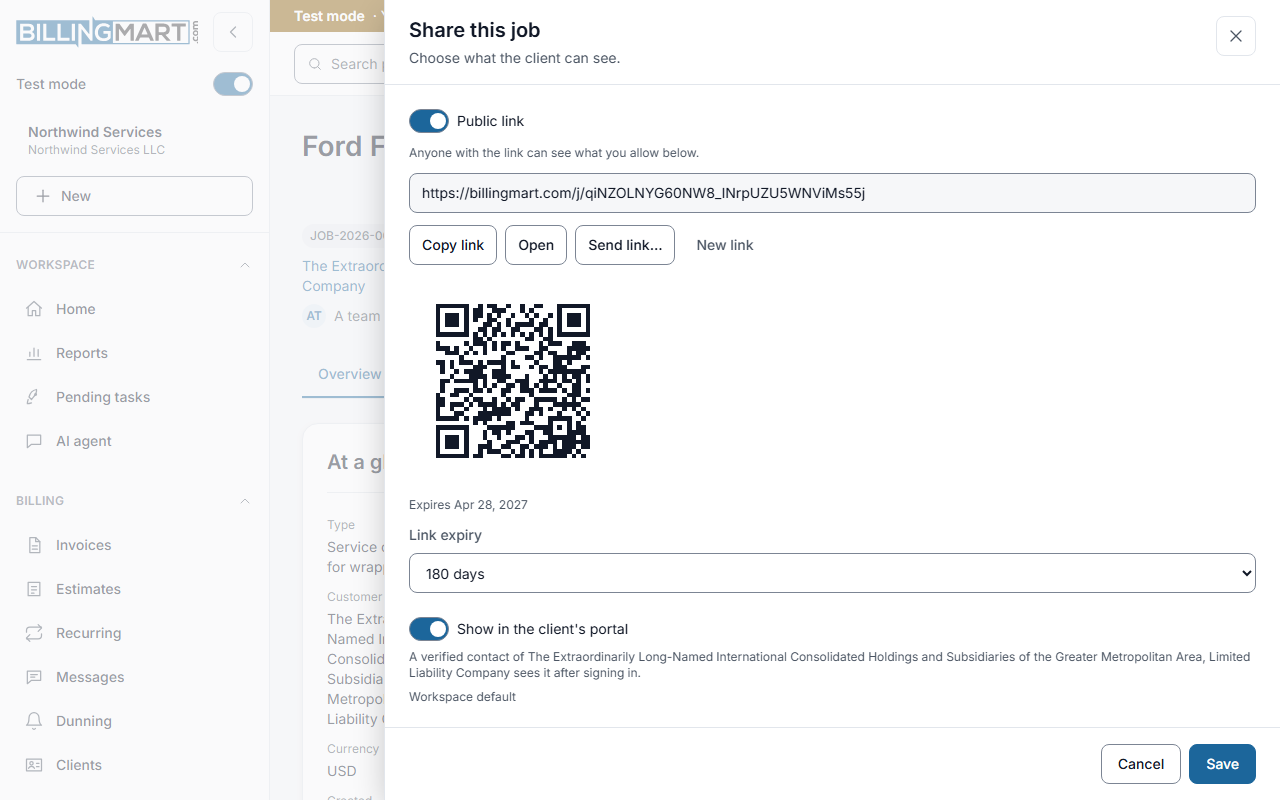
A share link opens the record's page at billingmart.com. Anyone with the link can see what the record's settings allow. The page is hidden from search engines.
- A link always expires, after 30, 90, 180 or 365 days. Without a choice it lasts 180 days.
- Revoking a link stops it at once.
- Making a new link stops the old one at the same moment.
When a link has expired or was revoked, the page says: This link is no longer available. Ask the business that sent it for a new one.
Related articles
- Documents on a work recordAdd several files to a record at once, see the result for each file, choose what the client can see, and meet the type's required documents.
- Email or text a client from a work recordHow the Messages tab of a work record lists every email and text about it, what a message can carry, and how a text conversation is linked to the record.
- Verified contacts and why a send is blockedWhat a verified email or phone means, the three ways a contact becomes verified, what an unverified contact can and cannot receive, and why a send is held back.