Stages and the board
Move work records through their stages on the record or the board, complete, reopen or cancel them, and set the next action and assignee.
On this page
Each record type has its own stages. A stage says where a work record stands. The console calls work records Jobs. Your workspace may use its own word, such as Calls for a towing company or Matters for a law firm. The screens are the same.
Stages and their kinds
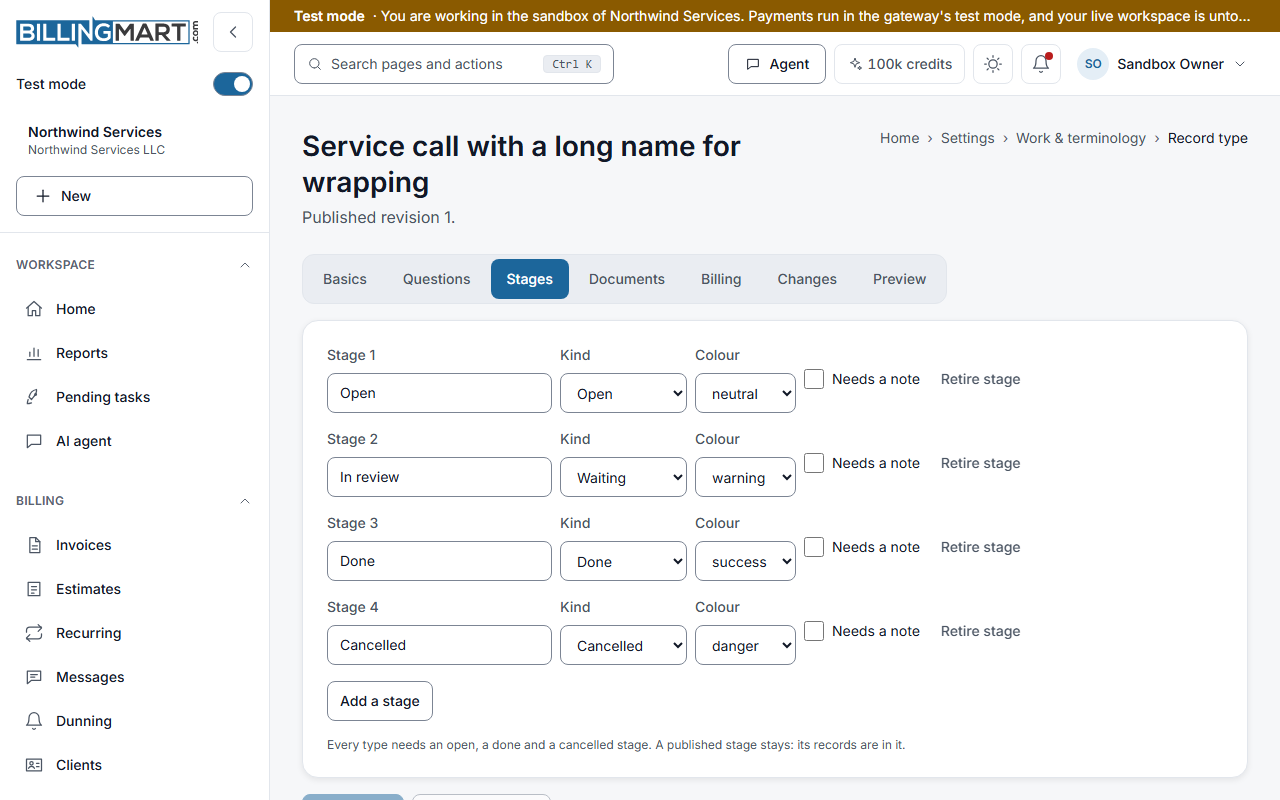
Each stage has a name your business chooses and a kind that BillingMart understands:
| Kind | What it means |
|---|---|
| Open | The work is under way. |
| Waiting | The work is waiting on someone else. |
| Ready to bill | The work can be invoiced. |
| Done | The work is finished. |
| Cancelled | The work was abandoned. |
The industry packs start with these stages:
- Towing Service: Dispatched, En route, On scene, Towed / stored, Released, Cancelled.
- Litigation: Intake, Active, Awaiting client, Ready to bill, Closed, Withdrawn.
- Policy (insurance agency): Quoted, Bound, In force, Renewal due, Expired, Cancelled.
A new record starts in its type's first open stage. Only an active record moves between stages. Activate a draft first.
Move a record from its page
- Open the record.
- Open the menu beside Mark complete and select Move to stage…. It is there only for a type that has stages.
- Choose the Stage. If the stage needs a note, write it in Note (required for this stage).
- Select Move.
Moving a record into a done stage completes it. The type's answers and documents required for completion are checked first.
Move a record on the board
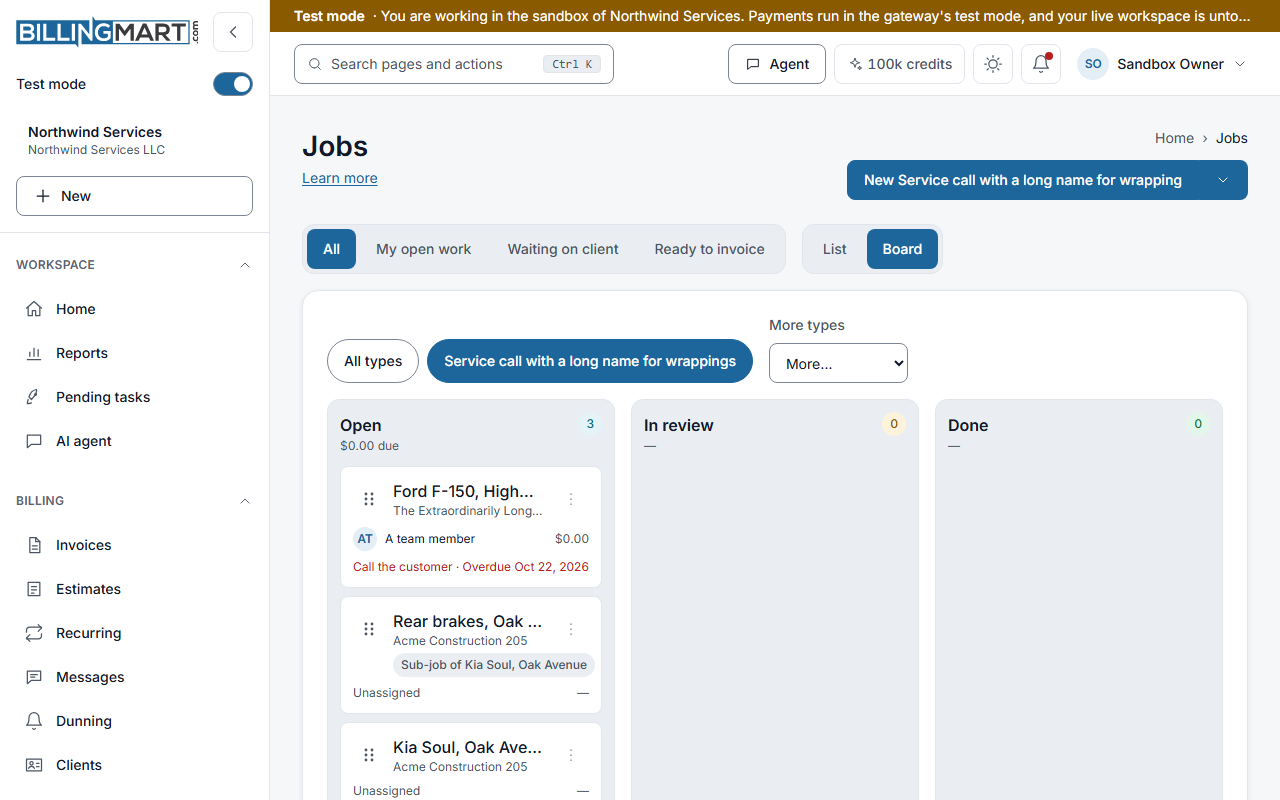
- Open Jobs and choose one type.
- Select Board in Layout. The board shows one column per stage and a card per active record.
- Drag a card to another column. You can also use the card's menu to move it.
If you drag a card into a done stage while required documents are missing, the card goes back and a dialog names them. Select Complete anyway to finish without them, or Close. Complete anyway works only when every missing category allows it; otherwise the dialog asks you to attach them first.
On a small screen there is no dragging. Use the card's menu. A move into a stage that needs a note, a done stage or a cancelled stage asks you first. The board shows the most recently updated records. If someone else moved a card at the same time, it goes back and the board reloads.
A viewer sees the board but cannot move cards.
Complete, reopen and cancel
- Mark complete in the record's header moves it to its type's first done stage. The answers and documents required for completion are checked. If only documents that allow it are missing, Complete anyway appears.
- Reopen puts a completed record back in its type's first open stage.
- Cancel… asks why, then Cancel call (with your own word for a record). Only an owner or admin can cancel. A cancelled record stays on file and cannot be reopened. A record cannot be cancelled while a sent invoice or an open bill names it. Void or settle the invoice, or release the bill, first.
A record finished without its documents says so on its Activity tab, for example finished without: Photos.
Completing a record does not touch its invoices. An open invoice stays open and payable.
Saved views
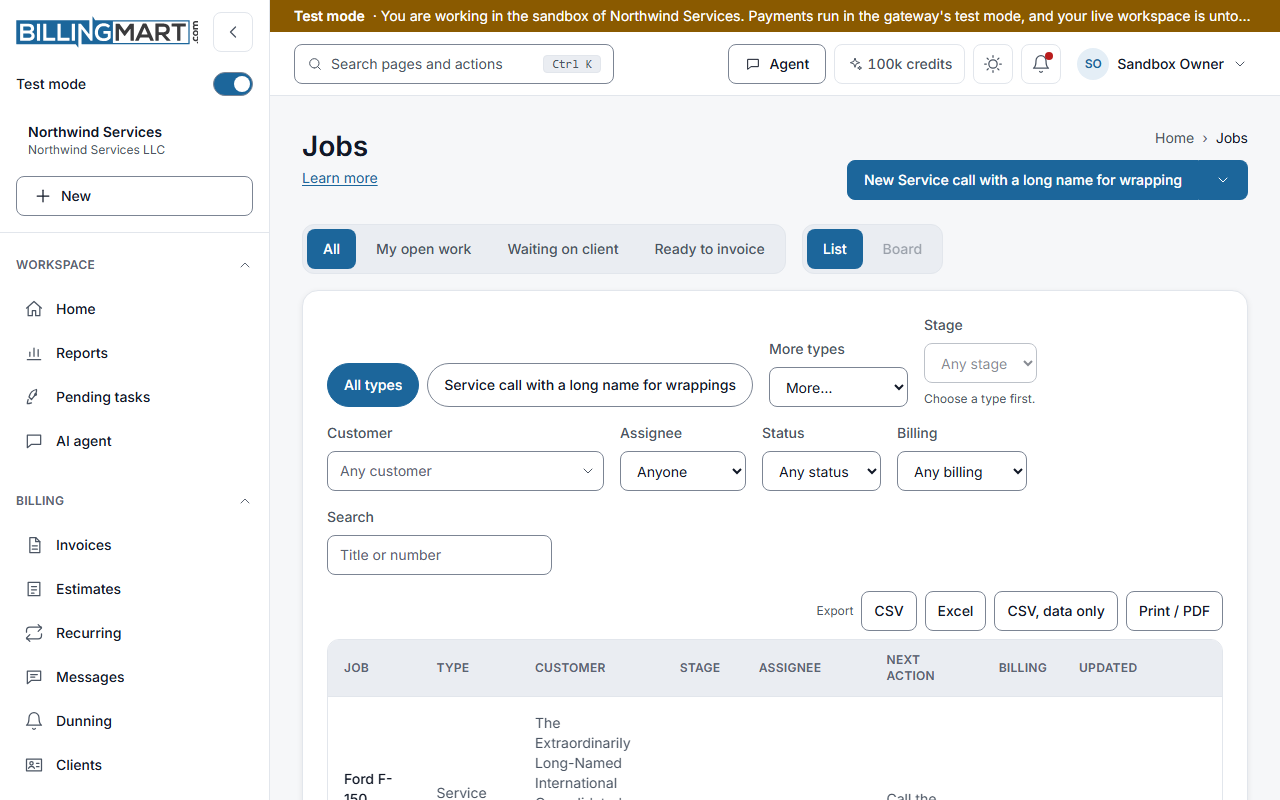
The Jobs list has four saved views under its title:
- All
- My open work: active records assigned to you.
- Waiting on client: active records in a waiting stage.
- Ready to invoice: active and completed records that have no invoice yet.
Next action and assignee
- Assignee. The person responsible. Select Assign… in the record's menu and choose a person, or Unassigned. The assignee must be an active member who can see the record's business.
- Next action. What happens next, with an optional Due date. Select Set next action… in the record's menu, or on the Next action card of the Overview tab. Select Done on the card when it is finished, or Change… to edit it.
Notices
BillingMart tells people about changes to a record:
- The new assignee hears when a record is assigned to them, unless they assigned it to themselves. This notice is also emailed.
- The assignee and the person who created the record hear when it moves to another stage, unless they moved it.
- A daily digest lists the next actions that are due. It goes to the next action's assignee, else the record's assignee, else its creator, else the owners. It is also emailed.
Each person's notification settings decide where these notices appear.
Related articles
- Create a work recordChoose a record type, fill in the title, client and details, and create the record as a draft or create and activate it in one step.
- Edit or delete a work recordChange a work record's name, client, values and answers, and delete a record made by mistake with its unpaid invoices, open bills and draft estimates.
- Documents on a work recordAdd several files to a record at once, see the result for each file, choose what the client can see, and meet the type's required documents.